Public Wi-Fi Security in 2026: 5 Steps to Protect Your Mobile Data When Connecting on the Go

The year 2026 is here, and with it, an ever-increasing reliance on connectivity. From bustling coffee shops to airport lounges, public Wi-Fi networks are ubiquitous, offering a convenient way to stay connected, work remotely, and access information on the go. However, this convenience comes with inherent risks. The open nature of these networks makes them a prime target for cybercriminals looking to intercept your data, steal your credentials, or compromise your devices. Understanding and implementing robust public Wi-Fi security measures is no longer optional; it’s a critical necessity for safeguarding your mobile data and privacy. This comprehensive guide will walk you through five essential steps to ensure your digital safety in 2026, empowering you to connect with confidence, no matter where you are.
The Evolving Landscape of Public Wi-Fi Threats in 2026
Before diving into solutions, it’s crucial to understand the threats you face. Cybercriminals are constantly refining their tactics, and what might have been sufficient protection a few years ago might be inadequate today. In 2026, the landscape of public Wi-Fi threats is more sophisticated than ever. We’re seeing a surge in:
- Advanced Man-in-the-Middle (MitM) Attacks: These attacks involve an attacker secretly relaying and possibly altering the communication between two parties who believe they are directly communicating with each other. On public Wi-Fi, this often means an attacker positions themselves between your device and the Wi-Fi router, intercepting all your traffic.
- Evil Twin Hotspots: These are fake Wi-Fi networks set up by attackers to mimic legitimate ones (e.g., ‘Starbucks_Free_Wi-Fi’). Once you connect, all your data flows through the attacker’s device, making it easy for them to capture sensitive information.
- Session Hijacking: Attackers can steal session cookies, allowing them to impersonate you on websites and online services without needing your password.
- Malware Distribution: Some compromised public Wi-Fi networks can be used to inject malware directly onto your device when you connect or visit certain websites.
- DNS Spoofing: This redirects your browser to malicious websites even if you type in the correct URL, often to phishing sites designed to steal your login credentials.
- Zero-Day Exploits: Attackers are always looking for newly discovered vulnerabilities in software and operating systems, which can be exploited even on seemingly secure networks.
The motivation behind these attacks ranges from financial gain through credit card fraud and identity theft to corporate espionage and data breaches. Therefore, proactive and comprehensive public Wi-Fi security measures are paramount.
Step 1: Always Use a Reputable Virtual Private Network (VPN)
This is arguably the most critical step for enhancing your public Wi-Fi security. A Virtual Private Network (VPN) creates an encrypted tunnel between your device and a VPN server, routing all your internet traffic through this secure connection. This means that even if an attacker intercepts your data on a public Wi-Fi network, they won’t be able to read it because it’s encrypted. It’s like sending your data through a private, armored pipeline instead of an open road.
Why a VPN is Indispensable for Public Wi-Fi in 2026:
- Data Encryption: The primary benefit. Your data is scrambled, making it unreadable to anyone without the encryption key. This protects your passwords, banking details, personal messages, and browsing history.
- IP Address Masking: A VPN hides your true IP address, replacing it with the IP address of the VPN server. This makes it much harder for websites, advertisers, and even network administrators to track your online activities back to you.
- Bypassing Geo-restrictions: While not a security feature per se, a VPN allows you to access content and services that might be geo-restricted, by making it appear as if you’re browsing from a different location.
- Protection Against Evil Twin Attacks: Even if you accidentally connect to an evil twin hotspot, your VPN encrypts your traffic, preventing the attacker from seeing your sensitive data.
- Enhanced Anonymity: By routing your traffic through multiple servers (in some advanced VPNs), your online anonymity is further increased.
Choosing the Right VPN in 2026:
Not all VPNs are created equal. When selecting a VPN for robust public Wi-Fi security, consider the following:
- No-Log Policy: Ensure the VPN provider has a strict no-log policy, meaning they don’t record your online activities. This is crucial for privacy.
- Strong Encryption Standards: Look for VPNs that use industry-standard encryption protocols like OpenVPN, IKEv2/IPsec, or WireGuard with AES-256 encryption.
- Kill Switch Feature: A kill switch automatically disconnects your device from the internet if the VPN connection drops, preventing your data from being exposed.
- Server Network: A large network of servers across various locations ensures good speeds and more options for bypassing geo-restrictions.
- Reputation and Reviews: Research reputable VPN providers with a proven track record of security and customer satisfaction.
- Multi-device Support: Choose a VPN that allows you to protect all your devices (smartphone, laptop, tablet) with a single subscription.
Always activate your VPN *before* connecting to any public Wi-Fi network and keep it running for the entire duration of your session. This is your first and strongest line of defense.

Step 2: Disable Automatic Wi-Fi Connection and File Sharing
Your mobile devices are often configured for convenience, which can sometimes compromise your public Wi-Fi security. Two settings, in particular, need your attention: automatic Wi-Fi connection and file sharing.
Disable Automatic Wi-Fi Connection:
Many smartphones and laptops are set to automatically connect to known Wi-Fi networks or even open networks. While convenient at home or work, this feature is a significant security risk on the go. If your device automatically connects to a malicious ‘evil twin’ network without your explicit consent, your data becomes immediately vulnerable.
- How to Disable: Go to your device’s Wi-Fi settings. Look for options like ‘Auto-join Hotspot’, ‘Connect Automatically’, or ‘Ask to Join Networks’ and disable or set them to ‘Ask’. This ensures you manually select and confirm connection to any public network.
- Why it Matters: It prevents your device from inadvertently connecting to rogue networks that could be masquerading as legitimate ones. Always verify the network name with a staff member if possible.
Disable File Sharing:
Features like AirDrop (Apple), Nearby Share (Android), and Windows File Sharing are designed for easy data exchange between devices on the same network. However, on an unsecured public Wi-Fi network, these features can expose your files to anyone else connected to that network.
- How to Disable:
- Windows: Go to ‘Network and Sharing Center’, then ‘Change advanced sharing settings’. Turn off ‘Network discovery’ and ‘File and printer sharing’ for public networks.
- macOS: Go to ‘System Settings’ > ‘General’ > ‘Sharing’ and ensure all sharing options (File Sharing, Screen Sharing, etc.) are turned off. For AirDrop, set it to ‘Contacts Only’ or ‘Receiving Off’.
- Android: Check your ‘Settings’ for ‘Connected devices’ or ‘Google’ > ‘Devices & Sharing’ and disable ‘Nearby Share’.
- iOS: Go to ‘Settings’ > ‘General’ > ‘AirDrop’ and set it to ‘Receiving Off’ or ‘Contacts Only’.
- Why it Matters: Disabling file sharing prevents unauthorized access to your documents, photos, and other personal data by other users on the public network, significantly boosting your public Wi-Fi security.
Step 3: Prioritize HTTPS and Be Wary of Unsecured Websites
Even with a VPN, it’s good practice to be mindful of the websites you visit. HTTPS (Hypertext Transfer Protocol Secure) is the secure version of HTTP, meaning all communication between your browser and the website is encrypted. This is indicated by a padlock icon in your browser’s address bar and ‘https://’ at the beginning of the URL.
The Importance of HTTPS in 2026:
- End-to-End Encryption: HTTPS ensures that data exchanged between your browser and the website is encrypted, protecting it from eavesdropping and tampering. This adds an extra layer of public Wi-Fi security even if your VPN somehow fails or isn’t active.
- Data Integrity: It verifies that the data has not been altered during transfer.
- Authentication: HTTPS verifies the authenticity of the website you are visiting, helping to prevent you from landing on a fake phishing site.
Best Practices:
- Always Check for the Padlock: Before entering any sensitive information (passwords, credit card details) on a website, ensure the padlock icon is present and the URL starts with ‘https://’.
- Avoid Unsecured Websites: If a website only uses HTTP (no padlock, ‘http://’ in the URL), it’s best to avoid submitting any personal information, especially on public Wi-Fi. Your data will be transmitted in plain text, making it easy for attackers to intercept.
- Use Browser Extensions: Consider using browser extensions like ‘HTTPS Everywhere’ (though many modern browsers force HTTPS by default now) which attempts to automatically redirect you to the HTTPS version of a website if available.
- Be Skeptical of Warnings: If your browser warns you that a connection is not secure, take it seriously. Do not proceed, especially if you intend to share personal data.
While a VPN encrypts your entire connection, HTTPS provides an application-layer encryption for specific websites, offering a layered approach to public Wi-Fi security. Both are essential.
Step 4: Keep Your Software Updated and Use Strong, Unique Passwords
Software vulnerabilities are a primary entry point for cyberattacks. Outdated operating systems, browsers, and applications can have known security flaws that attackers can exploit. Similarly, weak or reused passwords are an open invitation for compromise.
The Criticality of Software Updates:
- Patching Vulnerabilities: Software updates often include security patches that fix newly discovered vulnerabilities. Delaying updates leaves your devices exposed to these known weaknesses.
- Enhanced Features: Updates also bring new security features and improvements, strengthening your overall device protection.
- Operating Systems: Ensure your smartphone (iOS, Android), laptop (Windows, macOS, Linux), and other connected devices are running the latest version of their respective operating systems. Enable automatic updates where possible.
- Applications and Browsers: Regularly update all your apps and web browsers. Outdated browsers, for instance, can be susceptible to drive-by downloads or malicious scripts.
The Power of Strong, Unique Passwords and Multi-Factor Authentication (MFA):
Even the most advanced public Wi-Fi security measures can be undermined by weak credentials. In 2026, password best practices are more important than ever.
- Strong Passwords: Create passwords that are long (at least 12-16 characters), complex (mix of uppercase and lowercase letters, numbers, and symbols), and unpredictable. Avoid using personal information or common dictionary words.
- Unique Passwords: Never reuse passwords across different accounts. If one service is compromised, all your accounts using that same password become vulnerable.
- Password Manager: Use a reputable password manager (e.g., LastPass, 1Password, Bitwarden). These tools securely store all your complex passwords, generate new ones, and autofill them, eliminating the need for you to remember dozens of unique combinations.
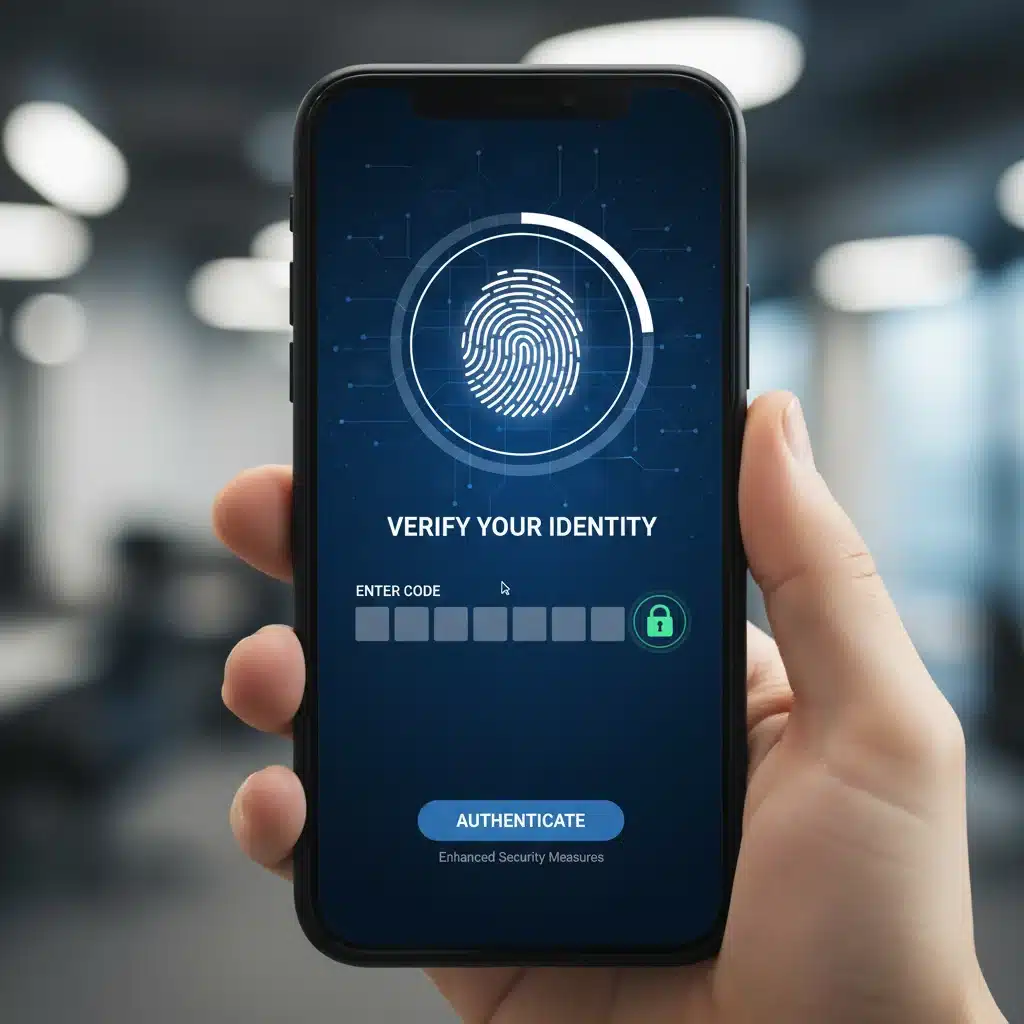
- Multi-Factor Authentication (MFA): This is a non-negotiable layer of security in 2026. MFA requires two or more verification factors to gain access to an account (e.g., something you know like a password, something you have like your phone for a code, or something you are like a fingerprint).
- Enable MFA Everywhere: Activate MFA on all your critical accounts: email, banking, social media, cloud storage, and any service that holds sensitive information. Even if an attacker steals your password, they won’t be able to log in without the second factor.
Regularly reviewing your password hygiene and ensuring all software is up-to-date forms a crucial part of your personal cybersecurity strategy, complementing your public Wi-Fi security efforts.
Step 5: Be Mindful of What You Do and Don’t Do on Public Wi-Fi
Even with all the technical safeguards in place, your behavior plays a significant role in your public Wi-Fi security. Certain activities are inherently riskier on public networks and should be avoided or approached with extreme caution.
What to Avoid (or do with extreme caution):
- Online Banking and Financial Transactions: While a VPN and HTTPS provide strong protection, it’s still best to avoid accessing banking apps, making credit card purchases, or performing any sensitive financial transactions on public Wi-Fi. If absolutely necessary, use your mobile data connection instead.
- Accessing Highly Sensitive Work Information: If your job involves handling confidential client data, trade secrets, or other highly sensitive information, refrain from accessing it over public Wi-Fi. Your company’s internal network or a secure private connection should be used for such tasks.
- Logging into Accounts Without MFA: If an account doesn’t offer Multi-Factor Authentication, think twice before logging in on public Wi-Fi, especially if it’s an important account.
- Downloading Unknown Files or Software: Public Wi-Fi networks can be manipulated to serve malicious downloads. Only download files from trusted sources and preferably not on public networks.
- Sharing Personal Hotspot: If you’re using your phone as a hotspot, ensure it’s password-protected with a strong, unique password. Treating your personal hotspot like a private network is crucial.
- Blindly Accepting Certificates or Security Warnings: If your browser or device presents an unusual security warning or asks you to accept an unfamiliar certificate, do not proceed. This could indicate a MitM attack.
What You Can Do More Safely (with precautions):
- General Browsing: Reading news, browsing non-sensitive websites, and checking social media (with MFA enabled) are generally safer, especially with a VPN active.
- Streaming Content: Watching videos or listening to music, as long as you’re using official apps and services, is relatively low risk.
- Email (Non-Sensitive): Checking non-critical emails is usually fine, but avoid opening attachments from unknown senders or clicking suspicious links.
Think of public Wi-Fi as a public space – you wouldn’t conduct sensitive business loudly in the middle of a crowded room, so don’t do it digitally on an open network. Exercise common sense and prioritize your public Wi-Fi security by limiting risky activities.
Beyond the Five Steps: Additional Tips for 2026
While the five steps above form the core of robust public Wi-Fi security, here are a few additional tips to further harden your defenses in 2026:
- Consider a Dedicated Mobile Hotspot: For frequent travelers or remote workers, a dedicated mobile hotspot with its own data plan offers a more secure alternative to public Wi-Fi. It creates a private, encrypted network for your devices.
- Use a Privacy-Focused Browser: Browsers like Brave or Firefox with enhanced tracking protection can further limit data collection and increase your anonymity while browsing on any network.
- Regularly Clear Browser Cache and Cookies: This reduces the amount of potentially sensitive data stored on your device that could be accessed if your device is compromised.
- Be Suspicious of Free Wi-Fi Offers: If a Wi-Fi network seems too good to be true (e.g., completely free, no password required in a place where you’d expect one), it probably is. Verify its legitimacy.
- Protect Physical Device Security: Don’t leave your devices unattended in public places. A stolen device is a direct route to data compromise, regardless of your Wi-Fi security. Use strong device passcodes and consider remote wipe capabilities.
- Educate Yourself Continuously: The cybersecurity landscape is always changing. Stay informed about the latest threats and best practices. Follow reputable cybersecurity news sources.
- Review App Permissions: Periodically check the permissions granted to apps on your mobile devices. Limit access to location, microphone, camera, and contacts for apps that don’t genuinely need them.
Conclusion: Staying Secure in a Connected World
In 2026, public Wi-Fi is an indispensable part of our connected lives. However, its convenience must always be balanced with vigilant public Wi-Fi security practices. By consistently employing a reputable VPN, disabling automatic connections and file sharing, prioritizing HTTPS, maintaining updated software with strong unique passwords and MFA, and exercising caution about your online activities, you can significantly reduce your risk of falling victim to cyber threats.
Remember, cybersecurity is an ongoing process, not a one-time setup. A proactive approach, combined with awareness and the right tools, will empower you to navigate the digital world safely and protect your valuable mobile data, wherever your journey takes you. Stay safe, stay connected, and stay secure.