Public Wi-Fi Security: 5 Must-Do Steps for Mobile Users in 2026 (PRACTICAL SOLUTIONS)
In our increasingly connected world, the allure of free public Wi-Fi is undeniable. From coffee shops and airports to libraries and hotels, these ubiquitous networks offer convenience, allowing us to stay productive, entertained, and connected on the go. However, this convenience often comes at a significant cost: your security. As we navigate 2026, the landscape of cyber threats is more sophisticated than ever, making robust public Wi-Fi security an absolute necessity for mobile users.
Think about it: every time you connect to an unsecured public network, you’re potentially exposing your sensitive data – from banking details and personal emails to social media logins and private messages – to prying eyes. Cybercriminals are constantly evolving their tactics, employing everything from simple eavesdropping to advanced phishing schemes and malware distribution, all designed to exploit vulnerabilities in public networks. Without proper precautions, using public Wi-Fi can feel like broadcasting your personal information to anyone within range.
This comprehensive guide is designed to equip you with the knowledge and practical steps needed to safeguard your digital life when using public Wi-Fi in 2026. We’ll delve into five must-do actions that mobile users should implement immediately to ensure their public Wi-Fi security. These aren’t just theoretical tips; they are actionable strategies that will significantly reduce your risk of becoming another victim of cybercrime. By adopting these measures, you can enjoy the benefits of public connectivity without compromising your privacy or peace of mind.
The Ever-Present Risks of Public Wi-Fi: Why You Can’t Afford to Be Complacent
Before we dive into the solutions, it’s crucial to understand the inherent dangers associated with public Wi-Fi. Many users mistakenly believe that if a network requires a password, it’s secure. This is a common misconception. Most public Wi-Fi networks, even those with a password, use a shared encryption key, meaning anyone on the network can potentially access data transmitted by others. Here are some of the primary threats:
Man-in-the-Middle (MitM) Attacks
This is perhaps the most prevalent threat. In a MitM attack, a hacker positions themselves between your device and the internet, intercepting and potentially altering your communications. They can read your emails, steal login credentials, and even redirect you to malicious websites without your knowledge. Imagine someone sitting between you and your bank, listening to every conversation and even changing your instructions.
Packet Sniffing
Cybercriminals can use specialized software to “sniff” or capture data packets traveling across an unsecured network. If your connection isn’t encrypted, these packets can contain sensitive information like usernames, passwords, and other personal data in plain text, making it incredibly easy for attackers to read.
Malware Distribution
Unsecured networks can be breeding grounds for malware. Attackers might exploit vulnerabilities in your device’s operating system or applications to inject malicious software. This malware could then steal your data, spy on your activities, or even take control of your device.
Phishing and Fake Wi-Fi Hotspots
Criminals often set up fake Wi-Fi hotspots with names similar to legitimate ones (e.g., “_Free_Airport_Wi-Fi” instead of “Airport_Free_Wi-Fi”). Once you connect to these rogue networks, the attacker has complete control over your internet traffic, making it simple to harvest your data or infect your device. Phishing attempts are also more common on public networks, often disguised as legitimate login pages for popular services.
Unencrypted Data Transmission
Even if the Wi-Fi network itself is somewhat secure, if the websites or services you’re using don’t employ encryption (HTTPS), your data is still vulnerable. Many older websites or less reputable services might still use HTTP, leaving your information exposed.
Understanding these risks is the first step toward implementing effective public Wi-Fi security measures. Now, let’s explore how you can protect yourself.
Step 1: Always Use a Virtual Private Network (VPN)
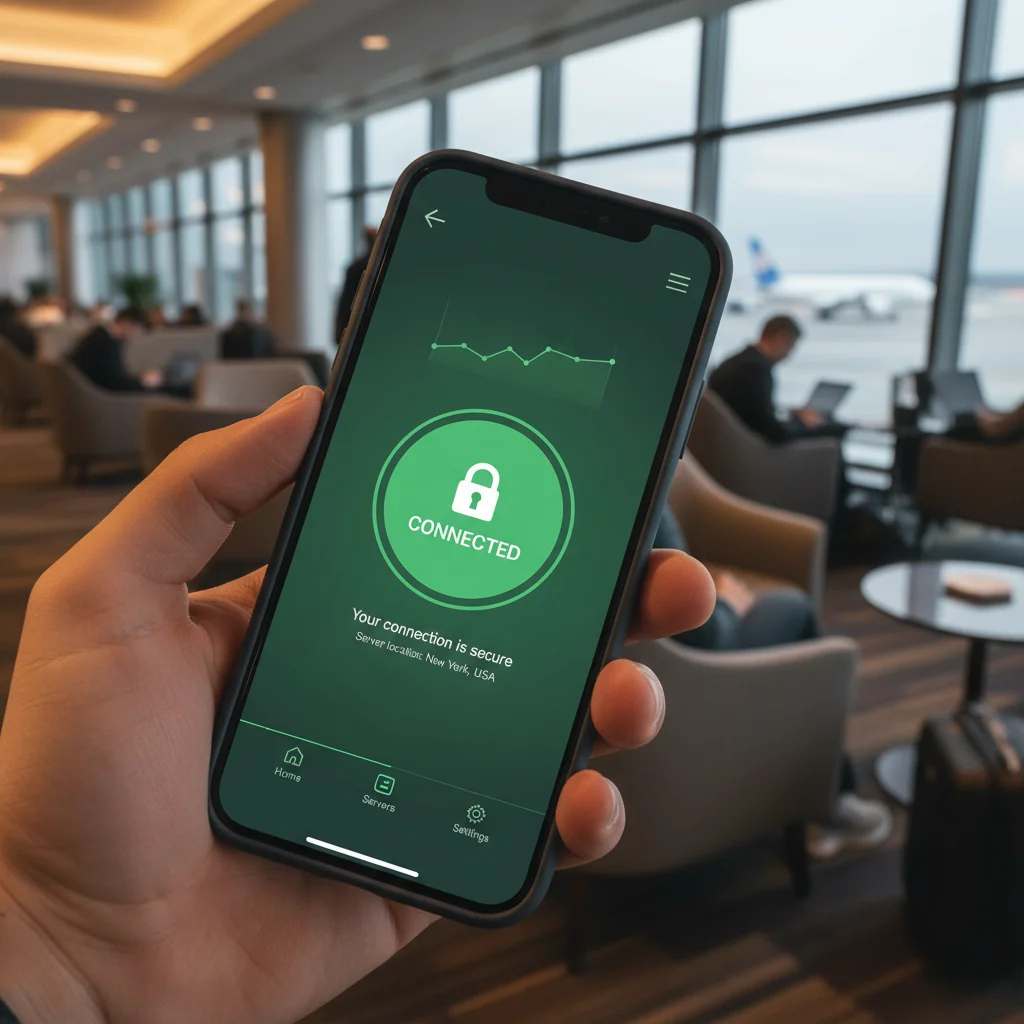
When it comes to public Wi-Fi security, a Virtual Private Network (VPN) is your first and most crucial line of defense. A VPN creates an encrypted tunnel between your device and a secure server, routing all your internet traffic through this tunnel. This means that even if a hacker intercepts your data on a public Wi-Fi network, they will only see scrambled, unreadable information.
How a VPN Enhances Your Security:
- Encryption: A VPN encrypts your data end-to-end, making it incomprehensible to anyone without the decryption key. This thwarts packet sniffers and MitM attackers.
- Anonymity: By masking your IP address with that of the VPN server, your online activities become much harder to trace back to your actual location and identity.
- Bypassing Geo-Restrictions: While not directly a security feature, a VPN can also allow you to access content and services that might be restricted in your current geographical location.
Choosing the Right VPN:
Not all VPNs are created equal. When selecting a VPN service for public Wi-Fi security, consider the following:
- Reputation: Choose a reputable provider with a strong privacy policy and a proven track record. Avoid free VPNs, as they often come with hidden costs, such as selling your data or displaying intrusive ads.
- Encryption Standards: Ensure the VPN uses strong encryption protocols like OpenVPN, IKEv2/IPsec, or WireGuard, with AES-256 encryption.
- No-Log Policy: A strict “no-log” policy means the VPN provider does not store any records of your online activities, further enhancing your privacy.
- Server Locations: A wide range of server locations can offer more flexibility and potentially faster connection speeds.
- Kill Switch: A kill switch automatically disconnects your internet if the VPN connection drops, preventing your data from being exposed, even for a moment.
Practical Tip: Always activate your VPN *before* connecting to any public Wi-Fi network and keep it on for the entire duration of your session. Make it a habit. Many VPN apps offer an “auto-connect” feature that automatically turns on the VPN when it detects an unsecured network.
Step 2: Disable Automatic Wi-Fi Connection and File Sharing
Your mobile device is often configured for convenience, which can sometimes be a security liability. Automatic Wi-Fi connection and file sharing features, while handy at home or in the office, pose significant risks on public networks.
Why Disable Automatic Wi-Fi Connection?
Many smartphones are set to automatically connect to known (or even unknown) Wi-Fi networks. This means your device could silently connect to a malicious hotspot without your explicit permission, immediately exposing you to risks. By disabling this feature, you retain control over which networks your device joins.
How to Disable (General Steps – may vary slightly by device):
- iOS: Go to Settings > Wi-Fi. Turn off “Ask to Join Networks” or set it to “Notify.” You can also “Forget This Network” for any public networks you’ve previously joined.
- Android: Go to Settings > Network & Internet > Wi-Fi > Wi-Fi preferences. Disable “Connect to public networks” or “Auto-connect.”
Why Disable File Sharing and Network Discovery?
File sharing features (like AirDrop on iOS, Nearby Share on Android, or general network discovery settings) allow devices on the same network to see and potentially interact with your device. On a public network, this means strangers could attempt to access your files or exploit vulnerabilities to gain unauthorized access.
How to Disable (General Steps – may vary slightly by device):
- iOS: For AirDrop, go to Settings > General > AirDrop and select “Receiving Off.”
- Android: Go to Settings > Google > Devices & sharing > Nearby Share and turn it off. Also, check your device’s specific file sharing options under “Connected devices” or “Bluetooth & device connection.”
- Windows (if using a laptop on public Wi-Fi): Go to Network and Sharing Center > Change advanced sharing settings. Under “Public” profile, turn off network discovery and file and printer sharing.
By taking these simple steps, you significantly reduce your device’s visibility and attack surface on unsecured public networks, bolstering your public Wi-Fi security.
Step 3: Prioritize HTTPS and Be Wary of Unsecured Websites
Even with a VPN, it’s crucial to be mindful of the websites you visit. A VPN encrypts your connection to the VPN server, but the connection from the VPN server to the website you’re visiting still needs to be secure. This is where HTTPS comes in.
Understanding HTTPS:
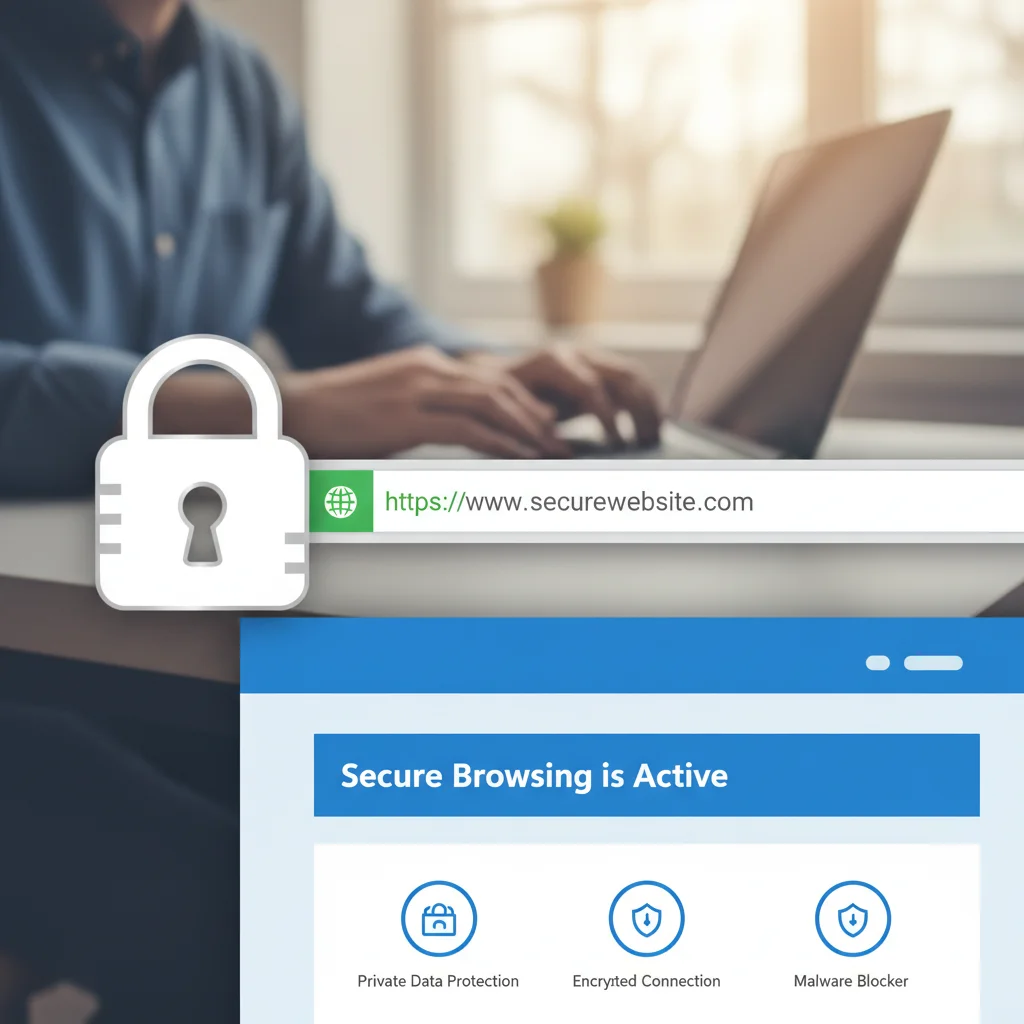
HTTPS (Hypertext Transfer Protocol Secure) is the secure version of HTTP, the protocol over which data is sent between your browser and the website you’re connecting to. The “S” at the end stands for “Secure” and indicates that all communications between your browser and the website are encrypted. This encryption prevents third parties from eavesdropping on your data as it travels from the website to your VPN server (and then to you).
How to Identify a Secure Website:
- Look for the Padlock Icon: In your browser’s address bar, you should see a padlock icon (usually green or gray) next to the website’s URL.
- Check the URL: The URL should start with
https://instead ofhttp://. - Certificate Details: Clicking on the padlock icon usually provides information about the website’s security certificate, indicating that its identity has been verified.
Why is this important for public Wi-Fi security? If you visit an HTTP-only website on a public network (even with a VPN), the data exchanged between the VPN server and that website might still be vulnerable. While the VPN protects your data from the public Wi-Fi hotspot to the VPN server, the lack of HTTPS on the destination site means the data could be intercepted or tampered with on its final leg of the journey.
Practical Steps for Secure Browsing:
- Always Check for HTTPS: Make it a habit to look for the padlock icon before entering any sensitive information (e.g., login credentials, credit card details).
- Use HTTPS Everywhere Browser Extension: For desktop browsers, extensions like “HTTPS Everywhere” (from the Electronic Frontier Foundation) automatically try to force a secure HTTPS connection whenever possible, even if you type in an HTTP address. While less common on mobile, some mobile browsers offer similar built-in features or privacy modes.
- Avoid Sensitive Transactions: If a website you need to use for banking, shopping, or email doesn’t support HTTPS, avoid using it on public Wi-Fi. Wait until you’re on a trusted, private network.
- Be Wary of Warnings: If your browser warns you that a connection is not secure, heed that warning. Do not proceed, especially if sensitive data is involved.
Step 4: Keep Your Devices and Apps Updated
Software updates are not just about new features; they are critically important for public Wi-Fi security. Developers regularly release patches and updates to fix security vulnerabilities that cybercriminals could exploit. Running outdated software is like leaving your front door unlocked.
Operating System (OS) Updates:
Your mobile device’s operating system (iOS, Android) is the foundation of its security. OS updates often include crucial security patches that address newly discovered weaknesses. Ignoring these updates leaves your device susceptible to attacks, especially when connected to less secure networks like public Wi-Fi.
App Updates:
Similarly, individual applications on your device can have security flaws. App developers frequently release updates to fix these vulnerabilities. An outdated app could be a backdoor for attackers to gain access to your data or device, even if your OS is up to date.
Why is this crucial for public Wi-Fi security?
When you connect to a public network, your device is exposed to a broader range of potential threats. Cybercriminals actively scan for devices with known, unpatched vulnerabilities. If your device or an app on it has an old, unpatched flaw, an attacker on the same public network could easily exploit it to gain unauthorized access, inject malware, or steal your data.
Practical Steps for Staying Updated:
- Enable Automatic Updates: Whenever possible, enable automatic updates for both your operating system and your applications. This ensures you receive critical security patches as soon as they are released.
- Regularly Check for Updates: If you prefer to manually manage updates, make it a habit to regularly check for and install them. For OS, this is usually in your device’s settings (e.g., System > Software Update on Android, Settings > General > Software Update on iOS). For apps, check your respective app store (Google Play Store, Apple App Store).
- Review App Permissions: While updating, take a moment to review the permissions requested by your apps. Ensure they only have access to what they truly need.
- Delete Unused Apps: Unused apps can still pose security risks if they are outdated or contain vulnerabilities. Regularly delete apps you no longer use.
By keeping your devices and applications meticulously updated, you significantly reduce the number of potential entry points for attackers, making your public Wi-Fi security posture much stronger.
Step 5: Use Strong, Unique Passwords and Multi-Factor Authentication (MFA)
Even the most secure network can’t protect you if your accounts are easily compromised. Strong, unique passwords combined with Multi-Factor Authentication (MFA) are fundamental pillars of overall cybersecurity, and their importance is amplified when using public Wi-Fi.
The Problem with Weak or Reused Passwords:
If a cybercriminal manages to obtain one of your passwords (e.g., through a data breach on a service you use, or via a phishing attempt on public Wi-Fi), they will often try that same password on multiple other services. This is known as a “credential stuffing” attack. If you reuse passwords, a single compromised account can lead to a cascade of breaches across your entire digital life.
The Power of Multi-Factor Authentication (MFA):
MFA adds an extra layer of security beyond just a password. It requires you to provide two or more verification factors to gain access to an account. These factors typically fall into three categories:
- Something you know: Your password.
- Something you have: A smartphone, a physical security key, or a token generator.
- Something you are: Biometrics like a fingerprint or facial scan.
Even if a hacker steals your password on a public Wi-Fi network, they still won’t be able to access your account without that second factor, making MFA an incredibly effective deterrent.
Practical Steps for Password and MFA Management:
- Use a Password Manager: A reputable password manager (e.g., LastPass, 1Password, Bitwarden) generates and stores strong, unique passwords for all your accounts. It also encrypts these passwords and can auto-fill them securely, removing the need for you to remember complex combinations. This is an indispensable tool for robust public Wi-Fi security and overall digital hygiene.
- Enable MFA Everywhere: Activate MFA on every online service that offers it, especially for critical accounts like email, banking, social media, and cloud storage. Most services provide options for SMS codes, authenticator apps (like Google Authenticator or Authy), or physical security keys. Authenticator apps are generally more secure than SMS codes, as SMS messages can sometimes be intercepted.
- Create Strong Passwords: If you’re not using a password manager, create passwords that are long (at least 12-16 characters), complex (a mix of uppercase and lowercase letters, numbers, and symbols), and completely unique for each account.
- Be Wary of Public Login Screens: When logging into any service on public Wi-Fi, always double-check the URL to ensure it’s legitimate and uses HTTPS. Phishing sites are designed to look identical to real login pages.
Implementing strong passwords and MFA creates a formidable barrier against unauthorized access, even if other public Wi-Fi security measures are momentarily bypassed.
Additional Best Practices for Enhanced Public Wi-Fi Security
While the five steps above are crucial, integrating these additional habits will further fortify your public Wi-Fi security:
Avoid Accessing Sensitive Information:
Whenever possible, refrain from conducting highly sensitive activities like online banking, shopping with credit cards, or accessing confidential work documents when connected to public Wi-Fi. If you must, ensure your VPN is active and the website uses HTTPS.
Use Your Mobile Data (Hotspot) Instead:
If you have a generous data plan, consider using your smartphone’s mobile hotspot feature instead of connecting to public Wi-Fi. Your own mobile data connection is generally more secure, as it’s a direct connection to your mobile carrier’s network and is encrypted.
Be Skeptical of “Free” Offers:
If a public Wi-Fi network requires an excessive amount of personal information (e.g., your full address, social security number) to connect, be extremely wary. It could be a data harvesting scheme.
Log Out After Use:
Always log out of accounts and close browser tabs for sensitive services when you’re finished, especially on public Wi-Fi. This minimizes the window of opportunity for session hijacking.
Consider a Firewall:
For laptops, ensure your operating system’s firewall is enabled and configured to block incoming connections when on public networks. While less common for mobile, some advanced mobile security apps offer similar network protection features.
Regularly Clear Browser Cache and Cookies:
While not a direct public Wi-Fi security measure, regularly clearing your browser’s cache and cookies can prevent tracking and remove potentially compromised session data.
Educate Yourself Continuously:
The cyber threat landscape is always changing. Stay informed about new threats and best practices in cybersecurity. Knowledge is your best defense.
Conclusion: Reclaim Your Digital Freedom with Public Wi-Fi Security
The convenience of public Wi-Fi is undeniable, but the risks are too significant to ignore. In 2026, mobile users must be proactive and intentional about their public Wi-Fi security. By consistently applying these five must-do steps – using a VPN, disabling automatic connections and file sharing, prioritizing HTTPS, keeping software updated, and employing strong passwords with MFA – you can drastically reduce your vulnerability to cyber threats.
Think of these measures not as burdensome tasks, but as essential tools for digital empowerment. They allow you to harness the benefits of connectivity without sacrificing your privacy or exposing your sensitive information to the lurking dangers of unsecured networks. Make these practices a routine part of your mobile usage, and you’ll navigate the digital world with confidence, knowing your data is protected.
Stay secure, stay connected, and enjoy the freedom that comes with robust public Wi-Fi security.