Mobile Privacy Settings 2026: Your Ultimate 7-Step Protection Guide
In an increasingly interconnected world, our smartphones have become extensions of ourselves, holding a wealth of personal and sensitive information. From financial data and health records to private conversations and location history, our mobile devices are treasure troves for cybercriminals and data brokers. As technology advances at an unprecedented pace, so do the threats to our digital privacy. This is why understanding and diligently managing your mobile privacy settings is not just recommended, but absolutely essential in 2026.
The landscape of mobile privacy is constantly evolving. New operating system updates introduce different ways to control your data, while emerging threats necessitate a proactive approach to security. What was considered adequate protection a few years ago might be woefully insufficient today. This comprehensive guide aims to equip you with the knowledge and practical steps to fortify your mobile privacy settings, ensuring your personal information remains secure and under your control. We’ll delve into a 7-step strategy that covers everything from basic configurations to advanced protective measures, designed to empower you in the digital age.
Protecting your digital footprint goes beyond just avoiding suspicious links; it involves a deep dive into the inner workings of your smartphone’s privacy architecture. This guide is tailored for both Android and iOS users, offering universal principles and specific actionable advice where necessary. By the end of this article, you will have a clear roadmap to enhance your mobile privacy, mitigating risks and fostering a safer online experience.
Step 1: Audit and Update Your Operating System and Apps Regularly
The first and most fundamental step in securing your mobile privacy settings is to ensure your device’s operating system (OS) and all installed applications are always up to date. Software updates are not just about new features; they are critical for patching security vulnerabilities that hackers can exploit. Manufacturers and developers constantly release updates to address newly discovered weaknesses and improve overall system stability and security.
Why Regular Updates Are Crucial for Mobile Privacy Settings
- Patching Vulnerabilities: Every piece of software, no matter how well-coded, can have bugs or security flaws. When these are discovered, developers release patches to fix them. Delaying updates leaves your device exposed to known exploits.
- Enhanced Security Features: OS updates often introduce new privacy controls and security features. For example, recent updates might offer more granular control over app permissions, improved encryption, or better tracking prevention mechanisms.
- Improved Performance and Stability: While not directly related to privacy, a stable and well-performing system reduces the likelihood of crashes or unexpected behavior that could inadvertently expose data.
How to Implement This Step:
For Operating System:
- Enable Automatic Updates: Both Android and iOS offer options to automatically download and install system updates. While it’s always good to review the changes, enabling this ensures you don’t miss critical security patches.
- Manually Check for Updates: Periodically, go into your device’s settings to manually check for updates. On iOS, navigate to Settings > General > Software Update. On Android, it’s typically Settings > System > System Update (the exact path may vary slightly by manufacturer).
For Applications:
- Enable Automatic App Updates: Similarly, enable automatic updates for your apps through the App Store (iOS) or Google Play Store (Android). This ensures all your applications are running the latest, most secure versions.
- Review App Permissions After Updates: Sometimes, app updates can subtly change or add new permission requests. After a major app update, it’s a good practice to review its permissions in your mobile privacy settings to ensure they align with your preferences.
Neglecting updates is akin to leaving your front door unlocked. Make it a habit to regularly check for and install all available software updates to maintain a robust defense against evolving threats to your mobile privacy.
Step 2: Master Your App Permissions: The Gatekeepers of Your Data
Apps are incredibly convenient, but they are also primary vectors for data collection. Many apps request access to various parts of your device and data, often beyond what’s necessary for their core functionality. This is where mastering your app permissions becomes a critical component of your mobile privacy settings strategy.
Understanding App Permissions
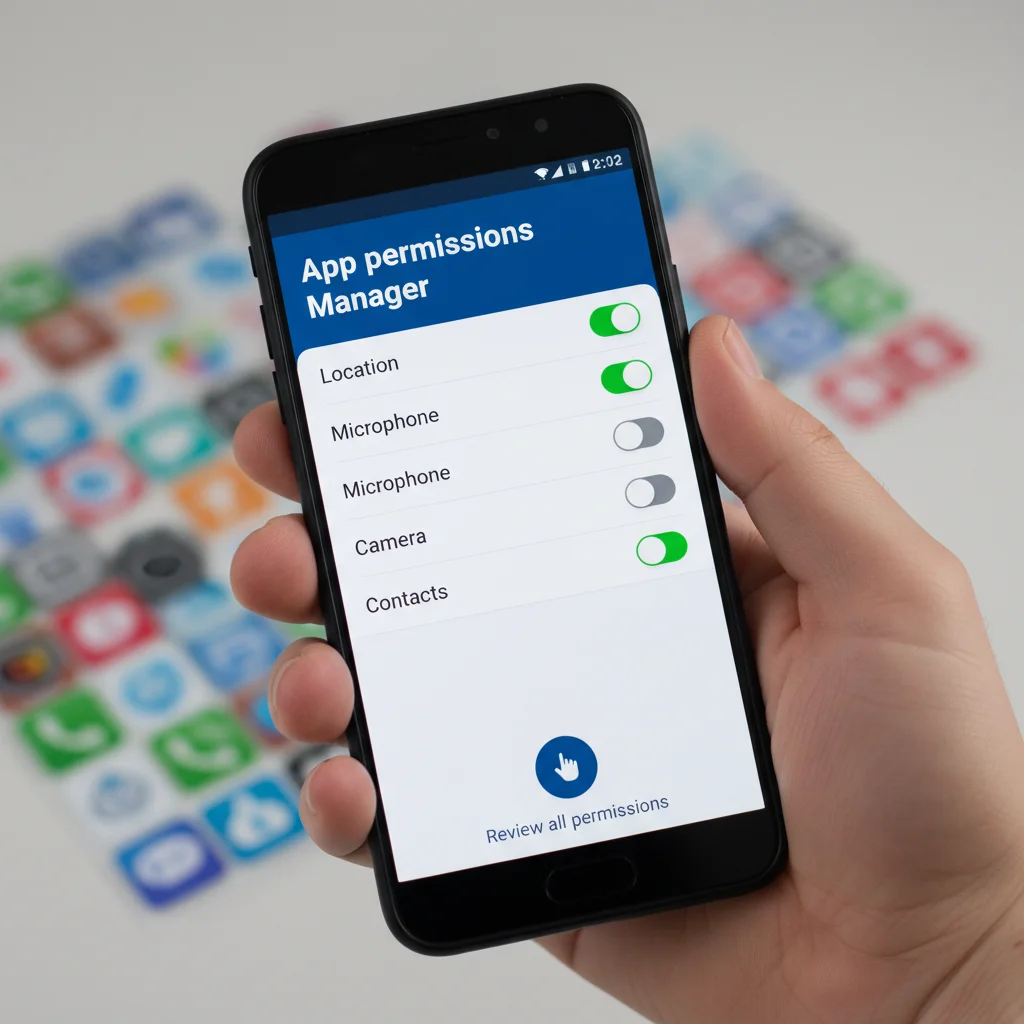
App permissions dictate what an application can access on your device. These can include:
- Location: Access to your precise or approximate location.
- Camera: Ability to take photos and videos.
- Microphone: Ability to record audio.
- Contacts: Access to your address book.
- Photos/Media/Files: Access to your device’s storage.
- Calendar: Access to your schedule.
- Sensors: Access to motion sensors, heart rate monitors, etc.
- Notifications: Ability to send you alerts.
How to Implement This Step:
On iOS:
- Review Permissions by App: Go to Settings > Privacy & Security. Here, you’ll see a list of categories (e.g., Location Services, Photos, Camera, Microphone). Tap on each category to see which apps have access and adjust accordingly.
- Review Permissions for All Apps: Alternatively, you can scroll down in Settings to find individual apps. Tap on an app to see its specific permissions and toggle them off if not needed.
- Use ‘Ask App Not to Track’: iOS introduced App Tracking Transparency, allowing you to ask apps not to track your activity across other companies’ apps and websites. Ensure this is enabled in Settings > Privacy & Security > Tracking.
On Android:
- Permission Manager: Navigate to Settings > Privacy > Permission Manager (or similar, depending on your Android version and device manufacturer). This central hub allows you to view permissions by type (e.g., Location, Camera, Microphone) and see which apps have access.
- Review Permissions by App: Go to Settings > Apps & Notifications > See all apps. Tap on an individual app, then ‘Permissions’ to adjust its access.
- Grant Permissions Only When Using the App: For many permissions (especially location and microphone), you can often choose ‘Allow only while using the app’ or ‘Ask every time.’ This is a highly recommended setting for enhancing your mobile privacy settings.
- Remove Permissions for Unused Apps: If you haven’t used an app in a while, consider revoking its permissions or uninstalling it entirely.
Be skeptical of apps requesting permissions that seem unrelated to their core function. A flashlight app doesn’t need access to your contacts, nor does a calculator app need your location. Regularly auditing these permissions is a powerful way to regain control over your personal data.
Step 3: Fortify Your Device Security with Strong Authentication and Encryption
Even the most meticulously configured mobile privacy settings can be bypassed if your device itself isn’t physically secure. Strong authentication and data encryption are your first lines of defense against unauthorized access.
Implementing Robust Device Security
- Strong Passcodes/PINs: Ditch simple 4-digit PINs. Opt for a complex alphanumeric passcode (on iOS) or a longer, more intricate PIN (on Android). The longer and more random your passcode, the harder it is to guess or brute-force.
- Biometric Authentication: Utilize Face ID/Touch ID (iOS) or Fingerprint/Face Unlock (Android). While convenient, ensure these are used in conjunction with a strong passcode as a fallback. Be aware of the limitations; for example, fingerprints can sometimes be lifted, and facial recognition can be fooled by sophisticated masks.
- Always-On Encryption: Modern smartphones typically come with full-disk encryption enabled by default. This means all data on your device is encrypted, making it unreadable without the correct decryption key (your passcode). Verify this setting is active in your device’s security settings. If your device is older, ensure you’ve enabled it.
- Secure Lock Screen: Configure your lock screen to display minimal information. Prevent messages, notifications, and even caller ID from showing when your phone is locked, especially if they contain sensitive information. On iOS, go to Settings > Face ID & Passcode > Allow Access When Locked. On Android, Settings > Display > Lock screen display or Notifications > Notifications on lock screen.
Advanced Security Considerations for Mobile Privacy Settings
- Remote Wipe/Find My Device: Enable and configure ‘Find My’ (iOS) or ‘Find My Device’ (Android). In case your phone is lost or stolen, these services allow you to remotely locate, lock, or even wipe all data from your device, preventing unauthorized access to your personal information.
- SIM Card Lock: Set a PIN for your SIM card. This prevents someone from using your SIM card in another device to access your calls, messages, or two-factor authentication codes.
Strong authentication and encryption are the bedrock of your mobile security. Without these foundational elements, even the most stringent app permission controls can be undermined if your device falls into the wrong hands.
Step 4: Scrutinize Your Location Services and Tracking Settings
Location data is one of the most valuable pieces of information for advertisers and, unfortunately, a potential privacy nightmare if not managed properly. Your phone constantly tracks your whereabouts, which can reveal patterns about your daily life, home, workplace, and even sensitive appointments. Diligently managing your location and tracking settings is a critical part of maintaining robust mobile privacy settings.
Controlling Location Data
- App-Specific Location Access: As discussed in Step 2, review which apps have access to your location. For most apps, ‘While Using the App’ is sufficient. For others, like weather apps, ‘Never’ might be appropriate. Only grant ‘Always’ access to essential apps that truly require it (e.g., navigation apps).
- System Services Location: Your operating system also uses location services for various functions (e.g., ‘Find My’ feature, time zone settings, emergency calls). On iOS, go to Settings > Privacy & Security > Location Services > System Services. On Android, Settings > Location > Location services. Review these and disable any that are not essential.
- Precise vs. Approximate Location: Both iOS and Android now offer the option to grant apps access to only your ‘Approximate Location’ instead of ‘Precise Location.’ This is a significant privacy enhancement for many apps that don’t need your exact coordinates. Utilize this feature whenever possible.
Managing Tracking and Ad Personalization
Beyond explicit location data, your mobile device generates a wealth of data points that can be used for tracking and targeted advertising.
- Ad Personalization (Android): On Android, go to Settings > Google > Ads. Here, you can ‘Delete Advertising ID’ and ‘Reset Advertising ID,’ which helps to break the link between your device and past ad tracking. You can also opt out of Ads Personalization.
- Ad Tracking (iOS): On iOS, go to Settings > Privacy & Security > Apple Advertising. You can toggle off ‘Personalized Ads.’ More importantly, ensure ‘App Tracking Transparency’ is enabled (Settings > Privacy & Security > Tracking), and regularly review which apps you’ve allowed to track you.
- Limit ‘Significant Locations’ (iOS) / ‘Location History’ (Android): Both operating systems keep a history of your frequented locations. On iOS, this is under Settings > Privacy & Security > Location Services > System Services > Significant Locations. You can view, clear, and disable this. On Android, this is typically linked to your Google Account’s ‘Location History’ activity controls. Regularly review and clear this data.
Being mindful of your location and tracking settings is pivotal for controlling your digital footprint and preventing unwanted surveillance. Regularly review these options as part of your commitment to robust mobile privacy settings.
Step 5: Secure Your Network Connections: Wi-Fi, Bluetooth, and VPNs
Your mobile device is constantly connecting to networks — Wi-Fi, cellular data, and Bluetooth peripherals. Each connection point presents a potential vulnerability if not properly secured. Understanding how to manage these connections is vital for a comprehensive mobile privacy settings strategy.
Wi-Fi Security Best Practices:
- Avoid Public Wi-Fi for Sensitive Transactions: Public Wi-Fi networks (cafes, airports) are often unsecured and can be easily intercepted by malicious actors. Avoid logging into banking apps, making purchases, or sharing sensitive information when connected to public Wi-Fi.
- Use a VPN (Virtual Private Network): A VPN encrypts your internet traffic, routing it through a secure server. This makes it incredibly difficult for anyone to snoop on your online activities, especially on public Wi-Fi. Invest in a reputable VPN service and get into the habit of using it, particularly when away from your home network.
- “Forget” Unused Wi-Fi Networks: Your phone remembers networks you’ve connected to. If you won’t use a network again, ‘forget’ it in your Wi-Fi settings. This prevents your phone from automatically connecting to potentially insecure networks.
- Private Wi-Fi Address (iOS) / Randomized MAC Address (Android): Modern devices offer features that randomize your device’s MAC address when connecting to Wi-Fi networks. This makes it harder for network providers or trackers to build a profile of your device based on its unique hardware identifier. Ensure this feature is enabled in your Wi-Fi settings for each network.
Bluetooth Security:
- Turn Off Bluetooth When Not in Use: Leaving Bluetooth on constantly can make your device discoverable and potentially vulnerable to exploits. Only enable it when you need to pair with a device (headphones, smartwatches, etc.).
- Be Wary of Unknown Pairing Requests: Never accept pairing requests from unknown devices.
Cellular Data and DNS:
- DNS Over HTTPS/TLS: Some advanced mobile privacy settings allow you to configure your DNS (Domain Name System) settings. Using DNS over HTTPS (DoH) or DNS over TLS (DoT) encrypts your DNS queries, preventing your ISP or other entities from seeing which websites you’re visiting.
Securing your network connections acts as a protective layer around your data as it travels across the internet. A vigilant approach here significantly bolsters your overall mobile privacy.

Step 6: Review and Manage Cloud Syncing and Backup Settings
Many of us rely on cloud services like iCloud, Google Drive, or Dropbox to back up our photos, documents, and other data. While incredibly convenient, these services also represent a potential point of vulnerability if not configured correctly. Managing your cloud syncing and backup settings is a critical element of your mobile privacy settings strategy.
Key Considerations for Cloud Privacy:
- What Data is Being Synced? Both iOS and Android allow you to control which types of data are backed up to the cloud. On iOS, go to Settings > [Your Name] > iCloud > Apps Using iCloud. On Android, navigate to Settings > Accounts > Google > Account sync. Review these lists carefully and disable syncing for any data you don’t wish to store in the cloud, or for apps that don’t absolutely require it.
- End-to-End Encryption: Ideally, your cloud backups should be end-to-end encrypted. This means only you can access the deciphered data. While some services offer this for certain data types (e.g., Apple’s Advanced Data Protection for iCloud), it’s not universal. Understand the encryption policies of your chosen cloud provider.
- Strong Cloud Account Security: Your cloud account is a single point of failure. Ensure it’s protected by a strong, unique password and, crucially, Two-Factor Authentication (2FA). Without 2FA, a compromised password means all your backed-up data is at risk.
- Regularly Review Backups: Periodically check what’s being backed up and delete old or unnecessary backups. This helps reduce your overall data footprint in the cloud.
- Photo and Video Sync: Photos and videos are often the most personal data synced to the cloud. Consider whether you truly need every image backed up, or if you prefer manual selection. Be aware of shared albums and who has access to them.
Additional Tips:
- Understand Sharing Settings: If you use cloud services to share files or photos, be extremely careful with sharing permissions. Ensure you’re only sharing with trusted individuals and that the permissions are set to ‘view only’ if editing isn’t required.
- Third-Party Cloud Apps: If you use third-party cloud storage apps, review their privacy policies and ensure they adhere to high security standards. Also, check their app permissions on your device (refer back to Step 2).
Cloud services offer immense convenience, but that convenience comes with privacy implications. By carefully managing your cloud syncing and backup preferences, you can ensure your data is secure and only accessible to those you trust.
Step 7: Adopt a Proactive Privacy Mindset: Beyond Settings
While meticulously configuring your mobile privacy settings is paramount, true digital privacy requires a continuous, proactive mindset. Technology evolves, and so do the threats. This final step focuses on ongoing vigilance and adopting habits that reinforce your privacy posture.
Ongoing Habits for Enhanced Mobile Privacy:
- Regular Privacy Audits: Make it a habit to revisit your privacy settings every few months, or after major OS updates. New features or changes might necessitate adjustments.
- Be Wary of Phishing and Social Engineering: No matter how secure your settings, human error remains a significant vulnerability. Be critical of unsolicited messages, emails, or calls that ask for personal information or prompt you to click suspicious links.
- Use Privacy-Focused Browsers and Search Engines: Consider using browsers like Brave, Firefox Focus, or DuckDuckGo, which offer enhanced tracking protection and privacy features. Switch to privacy-centric search engines like DuckDuckGo or Startpage to avoid personalized search results and tracking.
- Understand App Privacy Labels/Nutrition Labels: Both Apple’s App Store and Google Play Store now provide privacy labels (sometimes called ‘nutrition labels’) that summarize an app’s data collection practices. Read these before downloading new apps.
- Delete Unused Apps: Every app on your phone is a potential data point. If you don’t use an app, delete it. This reduces your attack surface and minimizes unnecessary data collection.
- Clear Browser History and Cache: Regularly clear your browser’s history, cookies, and cached data. This prevents websites from tracking your activity across sessions.
- Strong, Unique Passwords for All Accounts: While not strictly a ‘mobile setting,’ using a password manager to generate and store strong, unique passwords for all your online accounts (accessed via mobile) is crucial. A compromised account on one service can cascade to others.
- Educate Yourself: Stay informed about the latest privacy threats and best practices. Follow reputable cybersecurity news sources and privacy advocates.
The Power of “No”
Sometimes, the most powerful privacy setting is simply saying “no.” Saying no to unnecessary permissions, no to sharing more data than required, and no to impulse downloads of unvetted apps. This proactive approach, combined with diligent management of your mobile privacy settings, creates a formidable defense against the ever-present threats to your digital life.
Conclusion: Your Mobile Privacy in Your Hands
The digital world of 2026 demands a proactive and informed approach to personal privacy. Your smartphone, while a tool of immense convenience, is also a repository of your most personal data. By following this 7-step guide to managing your mobile privacy settings, you are not just configuring a device; you are asserting control over your digital identity.
From regularly updating your software and meticulously auditing app permissions to securing your networks and adopting a privacy-first mindset, each step contributes to a more secure and private mobile experience. This isn’t a one-time task but an ongoing commitment. The threats evolve, and so too must our defenses.
Take the time to implement these steps today. Revisit them regularly. Educate yourself and those around you. In an age where data is the new currency, being vigilant about your mobile privacy settings is the most valuable investment you can make in your personal security and peace of mind. Empower yourself; your digital future depends on it.