Data Encryption on Your Phone: A 3-Step Setup Guide for 2026 (PRACTICAL SOLUTIONS)
Data Encryption on Your Phone: A 3-Step Setup Guide for 2026 (PRACTICAL SOLUTIONS)
In an increasingly interconnected world, where our smartphones hold the keys to our digital lives – from personal photos and messages to financial information and work documents – the importance of robust security cannot be overstated. As we navigate through 2026, the threats to our digital privacy are more sophisticated than ever. This comprehensive guide will walk you through a practical, 3-step setup for phone data encryption, ensuring your sensitive information remains secure from prying eyes and cyber threats.
Understanding phone data encryption isn’t just for tech enthusiasts; it’s a fundamental aspect of digital literacy for everyone. Whether you’re an Android user or an iOS loyalist, safeguarding your data is paramount. This article provides actionable insights and practical solutions tailored for both major mobile operating systems, making advanced security accessible to all.
The Imperative of Phone Data Encryption in 2026
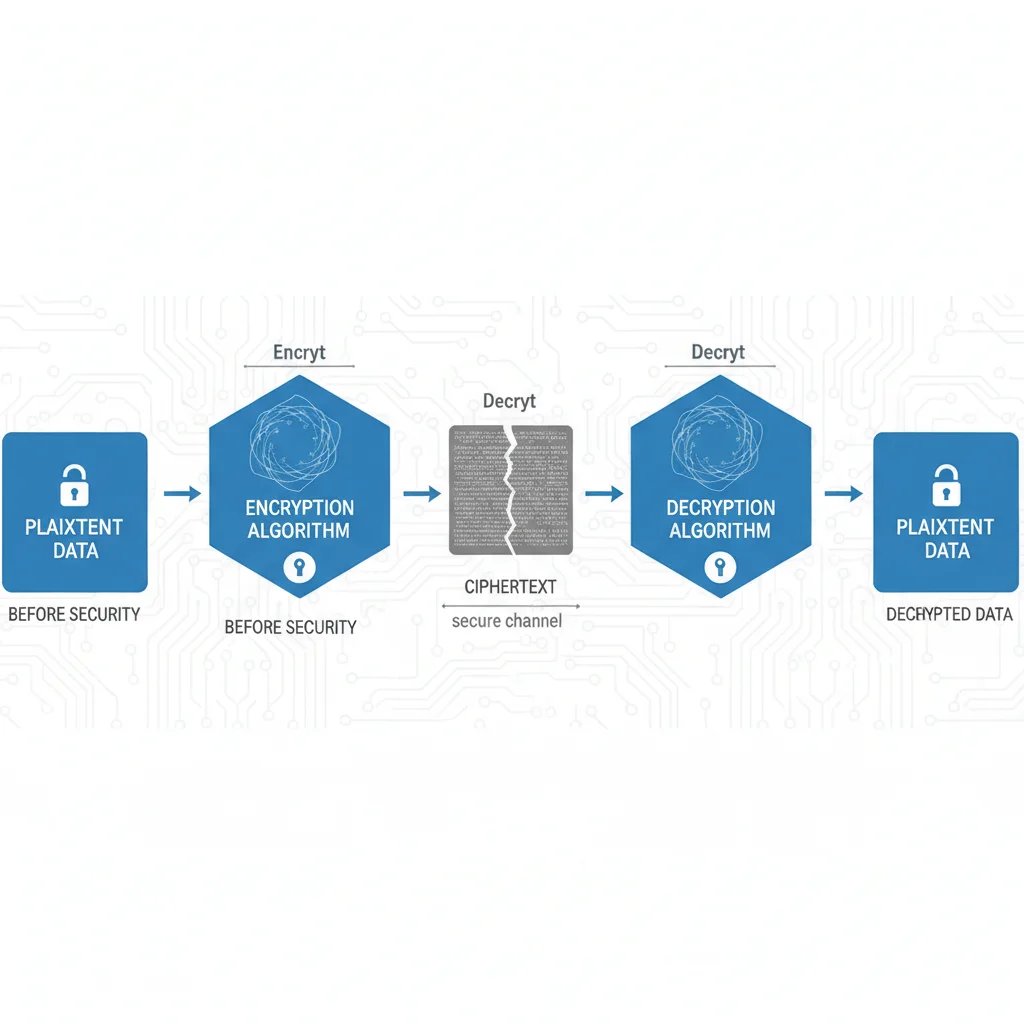
Before diving into the ‘how-to,’ let’s briefly touch upon ‘why.’ Why is phone data encryption so crucial today? Imagine your phone falling into the wrong hands. Without encryption, all your data – your emails, contacts, photos, banking apps, and more – could be easily accessed. Encryption acts as a digital lock, scrambling your data into an unreadable format that can only be unlocked with a specific key, typically your passcode or fingerprint.
The landscape of cyber threats is constantly evolving. Data breaches, identity theft, and ransomware attacks are daily occurrences. Your smartphone, being a portable repository of vast amounts of personal information, is a prime target. Governments, corporations, and even individuals might attempt to access your data for various reasons, some benign, others malicious. Phone data encryption serves as your primary defense, ensuring that even if your device is compromised, the data itself remains protected.
Evolving Threats and Data Protection
In 2026, threats extend beyond simple theft. Sophisticated malware can attempt to exfiltrate data, and advanced forensic tools can bypass basic security measures. Full disk encryption, which is what we’ll be focusing on, renders the entire storage of your device unreadable without the correct decryption key. This means that even if a highly skilled individual gains physical access to your device and attempts to extract data directly from its storage chips, they would only find scrambled, unusable information.
Furthermore, privacy concerns have escalated. With increased surveillance capabilities, ensuring your communications and personal data are encrypted by default is no longer a luxury but a necessity. This guide aims to empower you with the knowledge and steps to achieve this level of security for your mobile device.
Step 1: Understanding Your Device’s Encryption Status (Android & iOS)
The first step in securing your phone’s data is to ascertain its current encryption status. Modern smartphones, especially those running recent versions of Android and iOS, often come with encryption enabled by default. However, it’s always wise to verify and understand how it works on your specific device.
For iOS Devices (iPhones & iPads)
Apple has been a pioneer in device encryption. Since iOS 8, all new iPhones and iPads come with hardware-based phone data encryption enabled by default. This means that as soon as you set up a passcode on your device, your data is encrypted. The encryption key is tied to your device’s unique hardware ID and your passcode. Without your passcode, accessing the data is virtually impossible.
- Verification: To confirm, simply ensure you have a strong passcode, Face ID, or Touch ID enabled. Go to
Settings > Face ID & Passcode(orTouch ID & Passcode) and ensure a passcode is set. At the bottom of this screen, you should see ‘Data protection is enabled.’ This confirms your phone data encryption is active. - Key takeaway for iOS: As long as you have a passcode, your iPhone is encrypted. The strength of your encryption is directly tied to the strength of your passcode.
For Android Devices
Android’s encryption journey has been a bit more varied. While newer Android devices (typically running Android 6.0 Marshmallow and later) also come with encryption enabled by default, older devices might require manual activation. Android offers two main types of encryption: File-Based Encryption (FBE) and Full-Disk Encryption (FDE).
- File-Based Encryption (FBE): Introduced with Android 7.0 Nougat, FBE allows different files to be encrypted with different keys. This enables features like direct boot, where some parts of the phone can boot up before the user enters their passcode, allowing for alarms and accessibility services to function. Most modern Android devices use FBE.
- Full-Disk Encryption (FDE): Older Android versions primarily used FDE, which encrypts the entire user data partition. The device cannot boot past a certain point without the user entering their decryption password.
How to Verify and Enable Encryption on Android:
- Check Encryption Status: Go to
Settings > Security & privacy > Encryption & credentials(the exact path might vary slightly depending on your Android version and phone manufacturer). Look for an option like ‘Encrypt phone’ or ‘Encryption & credentials.’ It should state whether your phone is encrypted. - Enable Encryption (if not already): If your device is not encrypted, you’ll typically see an option to ‘Encrypt phone.’ Be aware that the encryption process can take a significant amount of time (an hour or more) and requires your phone to be charged. It’s crucial not to interrupt this process.
- Set a Strong Lock Screen: Similar to iOS, your encryption key is often derived from your lock screen password/PIN. A strong, complex password or PIN is essential.
Important Note for Android: If your device is older and doesn’t support FBE, enabling FDE might impact performance slightly. However, the security benefits far outweigh any minor performance degradation.
Step 2: Strengthening Your Encryption with Best Practices and Tools
Once you’ve confirmed that your phone data encryption is active, the next step is to enhance its effectiveness through best practices and, where applicable, additional tools. Encryption is only as strong as its weakest link, which often turns out to be the user’s habits or choice of credentials.
Choose a Robust Passcode/PIN
This cannot be stressed enough. Your passcode is the master key to your encrypted data. A simple 4-digit PIN is easily guessable or crackable. Opt for a strong, alphanumeric passcode, ideally 6 digits or longer for PINs, or a complex password for maximum security.
- Tips for Strong Passcodes:
- Avoid sequential numbers (123456) or common patterns.
- Do not use personal information (birth dates, anniversaries).
- For passwords, use a combination of uppercase and lowercase letters, numbers, and symbols.
- Consider a passphrase – a string of unrelated words that are easy for you to remember but hard for others to guess (e.g., ‘CorrectHorseBatteryStaple’).
Biometric Security (Fingerprint/Face ID)
While biometrics offer convenience, remember they are often secondary to your passcode. If your device reboots, you’ll almost always need to enter your passcode first. Biometrics can also be bypassed under certain circumstances, though modern implementations are increasingly secure.
- Usage: Enable Face ID or Touch ID (iOS) or fingerprint/face unlock (Android) for quick access, but always maintain a strong passcode as the primary fallback.
- Security Consideration: Be aware that in some jurisdictions, law enforcement can compel you to unlock your phone using biometrics, but not necessarily your passcode.
Secure Lock Screen Settings
Configure your lock screen to provide minimal information when locked. This prevents sensitive notifications from being displayed and limits access to features like control centers or quick settings without unlocking the device.
- iOS: Go to
Settings > Face ID & Passcodeand review ‘Allow Access When Locked.’ Disable anything you don’t want accessible without unlocking. - Android: Go to
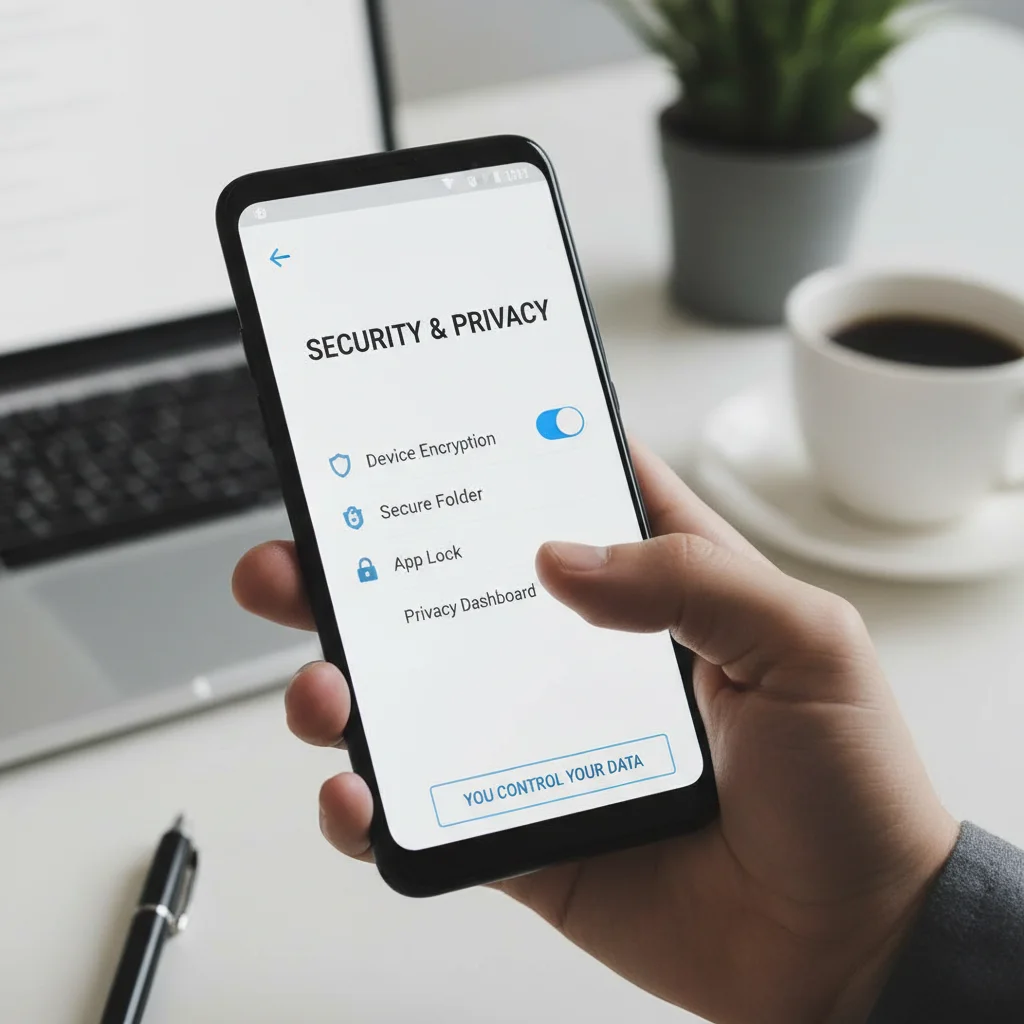
Settings > Security & privacy > Device unlock > Lock screen preferences(or similar). Adjust ‘On lock screen’ settings for notifications and other features.
Utilize Secure Folders/Private Spaces (Android Specific)
Many Android manufacturers (like Samsung with Secure Folder or OnePlus with Hidden Space) offer features to create an encrypted, isolated space on your device. This is excellent for storing highly sensitive apps, documents, and photos separately, adding an extra layer of phone data encryption.
- How to Use: Search for ‘Secure Folder,’ ‘Private Space,’ or ‘Hidden Space’ in your device settings or app drawer. Follow the setup instructions, which typically involve creating a separate passcode or biometric authentication for this secure area.
- Benefits: Even if your main phone is unlocked, the contents of your secure folder remain encrypted and inaccessible without the specific credentials for that space.
Regular Software Updates
Keeping your operating system and apps updated is a critical, yet often overlooked, aspect of security. Updates frequently include patches for newly discovered vulnerabilities that could potentially bypass encryption or other security measures. Ensure automatic updates are enabled or check for them regularly.
Step 3: Advanced Encryption Measures and Ongoing Vigilance
With your device’s core encryption established and best practices in place, the third step involves considering advanced measures and maintaining ongoing vigilance. Phone data encryption is not a ‘set it and forget it’ solution; it requires continuous attention to remain effective against evolving threats.
Encrypted Backup Solutions
What about your data when it leaves your phone? Backups are essential, but they must also be encrypted. Cloud backups (iCloud, Google Drive) offer encryption, but you should verify the level of encryption and whether it’s end-to-end.
- iCloud Backups: Apple encrypts iCloud backups. For maximum security, enable ‘Advanced Data Protection’ in iCloud settings, which provides end-to-end encryption for most iCloud data categories, meaning even Apple cannot access your data.
- Google Drive Backups (Android): Google encrypts data in transit and at rest. You can also opt to encrypt your backup with your screen lock PIN/password, adding an extra layer of protection.
- Local Backups: If you back up to a computer, ensure those backups are also encrypted using tools like BitLocker (Windows) or FileVault (macOS).
Secure Communication Apps
While your phone’s data at rest is encrypted, what about your communications in transit? Use end-to-end encrypted messaging apps like Signal, WhatsApp, or Telegram (with secret chats enabled) for sensitive conversations. These apps ensure that your messages are encrypted from your device to the recipient’s device, and only the sender and receiver can read them.
VPN Usage for Network Encryption
A Virtual Private Network (VPN) encrypts your internet traffic, protecting it from snooping, especially on public Wi-Fi networks. While not directly phone data encryption for data at rest, it’s a vital component of overall mobile security, encrypting data in transit over networks.
- Choose a Reputable VPN: Select a VPN provider with a strong no-logs policy and robust encryption protocols.
- Always On: Consider configuring your VPN to be ‘always on’ to ensure continuous protection.
Two-Factor Authentication (2FA) Everywhere
While not strictly encryption, 2FA adds a critical layer of security to your online accounts, which are often accessed via your phone. Even if your password is compromised, an attacker would still need the second factor (e.g., a code from an authenticator app or SMS) to gain access. Enable 2FA on all important accounts: email, banking, social media, and cloud services.
Regular Security Audits and Awareness
Periodically review your phone’s security settings. Are there any apps with excessive permissions? Have you downloaded any suspicious files? Staying informed about the latest cyber threats and security best practices is an ongoing process.
- App Permissions: Regularly check and revoke unnecessary permissions for apps.
- Phishing Awareness: Be skeptical of unsolicited messages or emails asking for personal information or urging you to click on suspicious links.
- Public Wi-Fi Caution: Avoid conducting sensitive transactions (banking, online shopping) on unsecured public Wi-Fi.
Troubleshooting Common Encryption Issues
While modern phone data encryption is generally robust, you might encounter minor issues or have questions. Here are a few common scenarios and their solutions:
- Performance Impact After Encryption: On older Android devices, FDE might slightly reduce performance. This is usually minimal with modern hardware. If it’s significant, ensure your device has sufficient free storage and consider a factory reset after encryption to optimize performance.
- Forgotten Passcode: This is the most critical issue. If you forget your passcode and haven’t backed up your data, it will likely be unrecoverable. This highlights the importance of strong, memorable passcodes and regular encrypted backups.
- Encryption Not Enabling: Ensure your device is fully charged and connected to power when attempting to enable FDE on Android. Also, check if there are any pending system updates that might be required.
- Data Recovery After Theft/Loss: If your encrypted phone is lost or stolen, remote wipe features (Find My iPhone, Find My Device for Android) can remotely erase your data, preventing unauthorized access. While this means losing your data on the device, it safeguards your privacy.
The Future of Phone Data Encryption (Beyond 2026)
Looking beyond 2026, the future of phone data encryption promises even greater sophistication and ease of use. Quantum-resistant encryption algorithms are on the horizon, designed to withstand attacks from future quantum computers. Hardware-based security modules will become even more integrated and secure, offering stronger isolation for encryption keys. We may also see more widespread adoption of decentralized identity solutions, further enhancing privacy.
The trend is towards making robust encryption an invisible, seamless part of the user experience, where devices are secure by design without requiring extensive technical knowledge from the user. However, user education and awareness will always remain critical. The human element is often the most vulnerable link in any security chain.
Conclusion: Your Digital Fortress on the Go
Implementing phone data encryption is not merely a technical step; it’s a commitment to your digital privacy and security. By following this 3-step guide – understanding your device’s encryption, strengthening it with best practices, and maintaining ongoing vigilance – you can transform your smartphone into a digital fortress.
In 2026 and beyond, protecting your personal data is more important than ever. Take control of your mobile security today. Your peace of mind, and the integrity of your digital life, depend on it.