Mastering Keyboard Shortcuts: Boost Your Productivity by 18% in US Software
In today’s fast-paced digital world, efficiency is no longer a luxury; it’s a necessity. Every second saved translates into more time for critical tasks, creative endeavors, or simply a better work-life balance. For US software users, one of the most underutilized yet powerful tools for achieving this efficiency is the humble keyboard shortcut. While seemingly minor, the cumulative effect of mastering keyboard shortcut strategies can be transformative, potentially boosting your productivity by a remarkable 18%.
Think about it: how many times a day do you move your hand from the keyboard to the mouse, click through menus, and then move your hand back? Each of these transitions, though quick, adds up. Over hours, days, and weeks, these micro-pauses accumulate into significant lost time. Keyboard shortcuts eliminate this friction, allowing you to keep your hands on the keyboard and your focus uninterrupted. This article will delve deep into advanced keyboard shortcut strategies, offering practical advice, specific examples for popular US software, and techniques to integrate these habits seamlessly into your daily workflow.
The Power of the Keyboard: Why 18% Productivity Matters
The 18% productivity boost isn’t an arbitrary number. Studies and anecdotal evidence from power users consistently demonstrate that minimizing mouse reliance and maximizing keyboard interaction can significantly reduce task completion times. This isn’t just about speed; it’s about flow. When you’re in a state of flow, your cognitive resources are fully dedicated to the task at hand, leading to higher quality work and reduced mental fatigue. Constantly switching between input devices breaks this flow, forcing your brain to re-contextualize and re-engage.
Consider the average professional who spends hours daily in applications like Microsoft Word, Excel, Outlook, Google Chrome, or Adobe Creative Suite. Each of these programs is laden with hundreds of functions, many of which can be triggered by a simple key combination. Learning and implementing even a fraction of these can shave minutes off repetitive tasks, which, compounded over a workday, translates into substantial time savings. These keyboard shortcut strategies are not just for programmers or IT professionals; they are for anyone who interacts with a computer regularly.
Understanding the Core Philosophy of Keyboard Shortcuts
At its heart, the philosophy behind effective keyboard shortcut strategies is about reducing friction. Every interaction that requires you to lift your hand from the keyboard, locate the mouse, move the cursor, and click, introduces a small amount of friction. By using shortcuts, you eliminate these steps, creating a more direct path between your intent and the software’s action. This directness leads to:
- Increased Speed: Faster execution of commands.
- Enhanced Focus: Less disruption to your thought process.
- Reduced Repetitive Strain: Minimizing mouse usage can alleviate strain on your wrist and arm.
- Greater Control: Some complex operations are often more precise with keyboard commands.
Embracing these strategies is about adopting a mindset of efficiency, constantly looking for ways to streamline your digital interactions. It’s an investment that pays dividends daily, making you a more agile and effective software user.
Fundamental Keyboard Shortcut Strategies for Every US Software User
Before diving into application-specific hacks, let’s establish a foundation of universal keyboard shortcut strategies that apply across most US software applications. These are the bedrock of efficient digital interaction and should be second nature to anyone aiming for peak productivity.
Universal Navigation and Editing Shortcuts
These shortcuts are your daily bread and butter. They work almost everywhere, from web browsers to word processors.
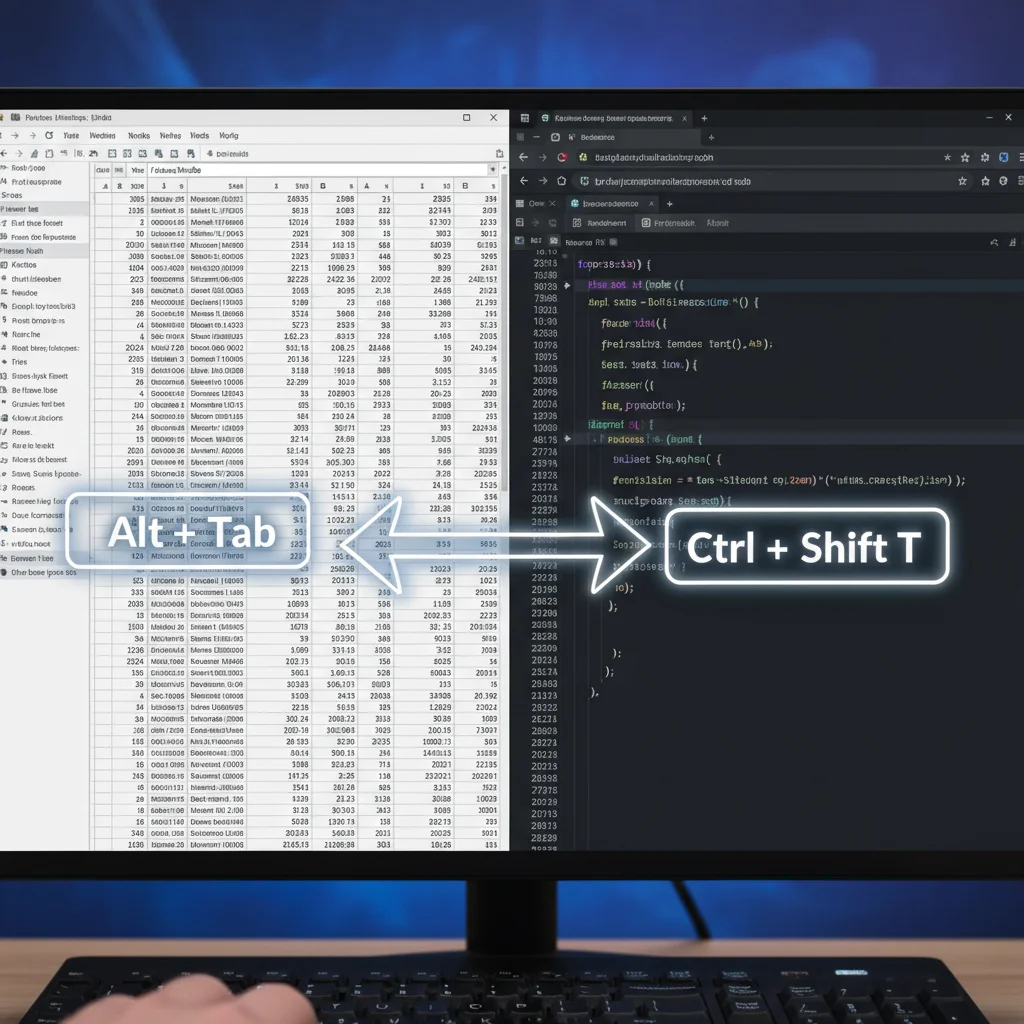
Ctrl + C(Copy) /Cmd + C(Mac): Copies selected text or items.Ctrl + X(Cut) /Cmd + X(Mac): Cuts selected text or items.Ctrl + V(Paste) /Cmd + V(Mac): Pastes copied or cut items.Ctrl + Z(Undo) /Cmd + Z(Mac): Undoes the last action.Ctrl + Y(Redo) /Cmd + Y(Mac): Redoes the undone action.Ctrl + A(Select All) /Cmd + A(Mac): Selects all content in the current window or document.Ctrl + F(Find) /Cmd + F(Mac): Opens the find dialog to search for text.Ctrl + S(Save) /Cmd + S(Mac): Saves the current document.Ctrl + P(Print) /Cmd + P(Mac): Opens the print dialog.Alt + Tab(Windows) /Cmd + Tab(Mac): Switches between open applications. This is perhaps one of the most powerful keyboard shortcut strategies for multitasking.Ctrl + W(Close Tab/Window) /Cmd + W(Mac): Closes the current tab or window.Ctrl + T(New Tab) /Cmd + T(Mac): Opens a new tab in a browser.Ctrl + N(New Window/Document) /Cmd + N(Mac): Opens a new window or document.
Text Manipulation and Cursor Movement
Beyond basic copy/paste, efficient text manipulation is crucial for writers, coders, and anyone working with documents.
Ctrl + Left/Right Arrow(Windows) /Option + Left/Right Arrow(Mac): Moves the cursor word by word.Ctrl + Up/Down Arrow(Windows) /Cmd + Up/Down Arrow(Mac): Moves the cursor to the beginning/end of a paragraph or document (depending on the application).Shift + Left/Right Arrow: Selects text character by character.Shift + Ctrl + Left/Right Arrow(Windows) /Shift + Option + Left/Right Arrow(Mac): Selects text word by word.Home/End: Moves cursor to the beginning/end of the current line.Shift + Home/End: Selects text from cursor to beginning/end of the line.
Mastering these fundamental keyboard shortcut strategies will immediately make a noticeable difference in your daily computer use, laying the groundwork for more advanced techniques.
Advanced Keyboard Shortcut Strategies for Popular US Software
Now, let’s get specific. Different software applications have their own unique sets of shortcuts that can drastically improve your workflow within those environments. Here, we’ll cover some essential advanced keyboard shortcut strategies for widely used US software.
Microsoft Office Suite (Word, Excel, PowerPoint, Outlook)
The Microsoft Office suite is a staple in many professional environments. Its depth of features is matched by its extensive shortcut library.
Microsoft Word
Ctrl + B/I/U: Bold, Italicize, Underline selected text.Ctrl + Shift + >/<: Increase/Decrease font size.Ctrl + K: Insert a hyperlink.Ctrl + L/E/R/J: Align text Left, Center, Right, Justify.Ctrl + Shift + F: Open Font dialog box.F7: Spell check.
Microsoft Excel
Excel users can achieve astonishing speed with the right keyboard shortcut strategies. Data entry, analysis, and formatting become remarkably fluid.
Ctrl + Arrow Keys: Jump to the edge of the current data region.Ctrl + Shift + Arrow Keys: Select to the edge of the current data region.Ctrl + Spacebar: Select entire column.Shift + Spacebar: Select entire row.Ctrl + 1: Open Format Cells dialog box.F2: Edit the active cell.Ctrl + ;: Insert current date.Ctrl + Shift + ;: Insert current time.Alt + Enter: Start a new line in the same cell.Ctrl + D: Fill Down (copies content from the cell above).Ctrl + R: Fill Right (copies content from the cell to the left).
Microsoft Outlook
Email management can be a huge time sink. Outlook shortcuts can cut this down significantly.
Ctrl + N: New email message.Ctrl + R: Reply to email.Ctrl + Shift + R: Reply All to email.Ctrl + F: Forward email.Ctrl + Enter: Send email.Ctrl + Shift + I: Go to Inbox.Ctrl + Shift + O: Go to Outbox.Ctrl + Shift + A: Create new appointment.Ctrl + 1,2,3, etc.: Switch between Mail, Calendar, Contacts, Tasks.
Web Browsers (Chrome, Firefox, Edge)
Modern work heavily relies on web browsers. Efficient browsing is a critical keyboard shortcut strategy.
Ctrl + T(New Tab) /Cmd + T(Mac): Opens a new tab.Ctrl + Shift + T(Reopen Closed Tab) /Cmd + Shift + T(Mac): Reopens the last closed tab. Invaluable!Ctrl + Tab/Ctrl + Shift + Tab(Windows) /Cmd + Option + Right/Left Arrow(Mac): Navigate through tabs.Ctrl + L(Focus Address Bar) /Cmd + L(Mac): Moves cursor to the address bar.Ctrl + D(Bookmark Page) /Cmd + D(Mac): Bookmarks the current page.F5(Refresh) /Cmd + R(Mac): Refreshes the page.Ctrl + Plus/Minus(Zoom In/Out) /Cmd + Plus/Minus(Mac): Zooms in or out.Ctrl + 0(Reset Zoom) /Cmd + 0(Mac): Resets zoom to default.Spacebar: Scroll down a page.Shift + Spacebar: Scroll up a page.
Operating System Shortcuts (Windows & macOS)
Beyond applications, mastering OS-level keyboard shortcut strategies can significantly enhance overall system navigation and management.
Windows Specific
Windows Key + D: Show/Hide Desktop.Windows Key + L: Lock computer.Windows Key + E: Open File Explorer.Windows Key + Arrow Keys: Snap windows to screen edges.Windows Key + Shift + S: Screenshot tool (Snip & Sketch).Ctrl + Shift + Esc: Open Task Manager directly.
macOS Specific
Cmd + Spacebar: Open Spotlight Search (powerful for launching apps and files).Cmd + Comma (,): Open preferences for the active application.Cmd + H: Hide the active application window.Cmd + Option + Esc: Force Quit Applications.Shift + Cmd + 3: Take a screenshot of the entire screen.Shift + Cmd + 4: Take a screenshot of a selected area.
Customization and Advanced Techniques for Keyboard Shortcut Strategies
While default shortcuts are powerful, the true mastery of keyboard shortcut strategies often lies in customization and implementing advanced techniques. Tailoring shortcuts to your specific needs and workflow can unlock even greater efficiency.
Mapping Custom Shortcuts
Many applications allow you to create or modify existing keyboard shortcuts. This is particularly useful for functions you use frequently but don’t have an easily accessible shortcut, or for overriding default shortcuts that conflict with your muscle memory.
- Microsoft Office: In Word, Excel, and PowerPoint, you can go to
File > Options > Customize Ribbon > Keyboard shortcuts: Customizeto map commands to specific key combinations. - macOS: System Preferences > Keyboard > Shortcuts allows you to create custom application shortcuts for any menu command.
- Text Editors/IDEs: Professional text editors like VS Code, Sublime Text, or Atom offer extensive customization options for keyboard bindings, allowing you to create complex multi-key sequences for specific actions.
When customizing, choose combinations that are memorable, easy to reach, and don’t conflict with existing essential shortcuts. Prioritize actions you perform dozens of times a day.
Utilizing Third-Party Shortcut Managers
For even greater control and cross-application consistency, consider third-party shortcut managers. These tools allow you to create global shortcuts that work across different applications, or even automate complex sequences of actions with a single keypress.
- AutoHotkey (Windows): A powerful, free, open-source scripting language for Windows that allows you to automate almost anything. You can remap keys, create text expanders, and define custom shortcuts for any application or system-wide. Learning AutoHotkey is an advanced keyboard shortcut strategy that can dramatically boost productivity.
- Keyboard Maestro (macOS): A robust macro and shortcut utility for macOS that provides similar capabilities to AutoHotkey, allowing for complex automation triggered by keystrokes, application launches, or even time.
- Text Expanders (e.g., TextExpander, PhraseExpress): While not strictly keyboard shortcuts, these tools allow you to type short abbreviations that automatically expand into longer phrases, sentences, or even entire email templates. This is a form of shortcut for text input that saves immense time.
The Importance of Muscle Memory and Practice
Learning keyboard shortcut strategies isn’t just about knowing the combinations; it’s about building muscle memory. Initially, you’ll be slower as you consciously recall each shortcut. However, with consistent practice, these actions will become automatic, performed without conscious thought. This is where the real productivity gains come from.
- Consistent Practice: Make a conscious effort to use shortcuts for common actions for a week. You’ll stumble, but you’ll improve.
- Focus on High-Frequency Actions: Start with the shortcuts for actions you perform most often (e.g., copy, paste, save, switch tabs).
- Sticky Notes/Cheat Sheets: Keep a list of new shortcuts you’re learning visible near your monitor.
- Challenge Yourself: For a day, try to avoid using your mouse for specific tasks. This forces you to discover and use keyboard alternatives.

Integrating Keyboard Shortcut Strategies into Your Daily Workflow
Simply knowing shortcuts isn’t enough; you need to integrate them into your workflow so they become second nature. Here are some keyboard shortcut strategies for effective integration:
Identify Your Personal Productivity Bottlenecks
Before you start memorizing every shortcut under the sun, identify where you spend the most time or experience the most friction. Are you constantly formatting text in Word? Navigating complex spreadsheets in Excel? Switching between dozens of browser tabs? Focus your learning efforts on shortcuts that address your specific pain points first.
Start Small, Build Up Gradually
Don’t try to learn 50 new shortcuts at once. Pick 3-5 new ones each week and make a conscious effort to use them. Once they become automatic, add a few more. This gradual approach prevents overwhelm and encourages sustainable habit formation.
Leverage Contextual Shortcuts
Many applications have contextual menus that appear when you right-click. Often, these menu items will display their corresponding keyboard shortcuts. Pay attention to these cues, especially in software you use frequently. This is an excellent way to organically discover new keyboard shortcut strategies.
Use the Alt Key (Windows) or Menu Bar (macOS) for Discoverability
In Windows applications, pressing the Alt key often reveals letter overlays on menu items, indicating the shortcut to access them. For example, pressing Alt then F will open the File menu, and then S might save. Similarly, on macOS, looking at the menu bar for any application will show the corresponding keyboard shortcut next to most menu items.
Practice with Purpose
Don’t just randomly hit keys. When you’re performing a task, pause for a moment and ask yourself, “Is there a shortcut for this?” If you don’t know, take a moment to look it up. This active learning approach reinforces the habit and makes the knowledge stick.
The Long-Term Benefits of Advanced Keyboard Shortcut Strategies
The benefits of investing time in learning and implementing advanced keyboard shortcut strategies extend far beyond the immediate productivity boost. They contribute to a more efficient, less stressful, and ultimately more enjoyable computing experience.
Reduced Cognitive Load
When actions become automatic through muscle memory, your brain is freed from the cognitive load of navigating menus and visually searching for options. This allows you to dedicate more mental energy to the actual task, leading to better focus and higher quality output.
Enhanced Ergonomics and Comfort
Constantly reaching for the mouse can contribute to repetitive strain injuries (RSIs) like carpal tunnel syndrome. By keeping your hands on the keyboard, you reduce these repetitive motions, promoting better posture and overall comfort during long work sessions. This is a crucial, often overlooked, aspect of effective keyboard shortcut strategies.
Increased Professionalism and Competence
A user who navigates software with fluidity and speed often projects an image of competence and professionalism. While not the primary goal, being a power user can enhance your reputation and efficiency in collaborative environments.
Adaptability to New Software
Once you develop a strong foundation in keyboard shortcut strategies, you’ll find that many patterns and conventions carry over to new software. This makes learning new applications much faster, as you’ll intuitively look for and adapt to their shortcut systems.
Common Pitfalls and How to Avoid Them
While the benefits are clear, some common hurdles can prevent users from fully embracing keyboard shortcut strategies.
Overwhelm and Information Overload
The sheer number of shortcuts can be daunting. As mentioned, the solution is to start small and focus on high-impact shortcuts first. Don’t try to learn everything at once.
Inconsistent Shortcuts Across Applications
One of the frustrations can be that the same action has different shortcuts in different programs (e.g., new tab is Ctrl+T in browsers but Ctrl+N for a new document in Word). While this is unavoidable, focusing on universal shortcuts first and then application-specific ones helps. Customization tools can also help bridge some of these inconsistencies.
Forgetting Newly Learned Shortcuts
Without consistent practice, new shortcuts can quickly fade from memory. Active recall and deliberately using the shortcuts, even when it feels slower at first, are key to cementing them into muscle memory.
Reliance on Mouse for Visual Cues
Many users are accustomed to the visual feedback of menus and icons. Transitioning to keyboard-only navigation requires a shift in mindset and trust in the system. Practice helps overcome this reliance.
Conclusion: Your Path to 18% More Productivity
The journey to boosting your productivity by 18% through advanced keyboard shortcut strategies is a marathon, not a sprint. It requires dedication, consistent practice, and a willingness to step outside your comfort zone. However, the rewards are immense: a faster, smoother, more focused, and ultimately more enjoyable computing experience.
Start today by identifying the three most frequent actions you perform with your mouse. Look up their keyboard equivalents and commit to using them exclusively for the next week. Gradually expand your repertoire, customize where necessary, and embrace the power of muscle memory. You’ll soon find yourself navigating your digital world with an efficiency and grace you never thought possible, proving that the smallest changes in habit can lead to the most significant gains in productivity.
Invest in yourself, invest in your skills, and unlock the full potential of your software by mastering these invaluable keyboard shortcut strategies. Your future, more productive self will thank you.