Unlock Hidden Productivity: Master Lesser-Known Features in US Productivity Suites

In the bustling landscape of modern work, where efficiency is paramount and time is a precious commodity, mastering your digital tools is no longer an option—it’s a necessity. We all use popular US productivity suites like Microsoft 365 and Google Workspace daily, but how many of us truly harness their full potential? Beyond the familiar word processing, spreadsheet, and presentation functions lie a treasure trove of lesser-known features designed to supercharge your workflow, enhance collaboration, and save you countless hours. By March 2026, the individuals and organizations that have taken the time to delve into these advanced functionalities will undoubtedly hold a significant competitive edge. This comprehensive guide aims to shed light on six such powerful, yet often overlooked, Productivity Suite Features that you should endeavor to master.
The digital workspace is constantly evolving, with continuous updates introducing new capabilities that often go unnoticed amidst our busy schedules. These advanced Productivity Suite Features aren’t just minor tweaks; they are game-changers that can transform how you manage projects, analyze data, communicate with colleagues, and even automate repetitive tasks. Imagine streamlining your reporting processes, creating dynamic and interactive presentations with minimal effort, or collaborating on documents with unprecedented precision. These are not futuristic dreams but present-day realities accessible through the sophisticated tools you already possess.
This article will guide you through each feature, explaining its utility, providing practical examples, and offering actionable steps to integrate it into your daily routine. Our goal is to empower you to move beyond basic usage and leverage these powerful capabilities to their fullest, ensuring that by March 2026, you are not just using your productivity suite, but truly mastering its hidden depths. Let’s embark on this journey to unlock unparalleled efficiency and innovation.
1. Advanced Data Analysis with Excel’s ‘Get & Transform Data’ (Power Query)
For many, Microsoft Excel is synonymous with spreadsheets. However, its ‘Get & Transform Data’ functionality, also known as Power Query, is a powerful suite of tools that goes far beyond basic data entry and calculations. This feature allows users to connect to, combine, and refine data from a wide variety of sources, making it an indispensable tool for anyone dealing with large or complex datasets. Mastering these Productivity Suite Features can revolutionize data preparation.
What is ‘Get & Transform Data’?
At its core, ‘Get & Transform Data’ enables you to import data from virtually anywhere—websites, databases, cloud services, other Excel files, and more. What sets it apart is its ability to clean, shape, and transform this data without altering the original source. Think of it as an ETL (Extract, Transform, Load) tool built right into Excel, but with a user-friendly interface that doesn’t require coding expertise (though M language can be used for advanced scenarios).
Why You Should Master It by March 2026
- Automate Data Preparation: Once you’ve set up a query to clean and transform your data, you can refresh it with new data inputs, and all the steps will automatically reapply. This eliminates repetitive manual data cleaning tasks, saving hours of work.
- Combine Disparate Data Sources: Easily merge data from different systems or files into a single, cohesive dataset ready for analysis. No more copying and pasting between files.
- Improve Data Accuracy: By standardizing data cleaning processes, you reduce the risk of human error, leading to more reliable reports and insights.
- Enhanced Reporting: With clean, well-structured data, your pivot tables, charts, and dashboards become more robust and insightful, empowering better decision-making.
How to Get Started
- Go to the ‘Data’ tab in Excel.
- In the ‘Get & Transform Data’ group, select ‘Get Data’.
- Choose your data source (e.g., ‘From File’ > ‘From Workbook’, ‘From Web’, ‘From Database’).
- The Power Query Editor will open, allowing you to perform various transformations: remove columns, filter rows, split columns, unpivot data, merge queries, append queries, and much more.
- Once satisfied, click ‘Close & Load’ to bring the transformed data into your Excel workbook.
By mastering these Productivity Suite Features, you’ll spend less time wrestling with data and more time extracting valuable insights, making you an invaluable asset in any data-driven environment.
2. Google Workspace’s Smart Canvas: Beyond Basic Collaboration
Google Workspace has always been at the forefront of collaborative tools, but its Smart Canvas initiative takes collaboration to an entirely new level. It’s not just about simultaneous editing anymore; it’s about creating interconnected, dynamic documents that integrate seamlessly with other Workspace applications. These are advanced Productivity Suite Features designed for the modern hybrid workplace.
What is Smart Canvas?
Smart Canvas introduces a set of flexible, interactive building blocks into Google Docs, Sheets, and Slides. These include smart chips (people, file, date, place, and event chips), templates, and pageless format. The goal is to make documents more than static files—they become living, breathing workspaces.
Why You Should Master It by March 2026
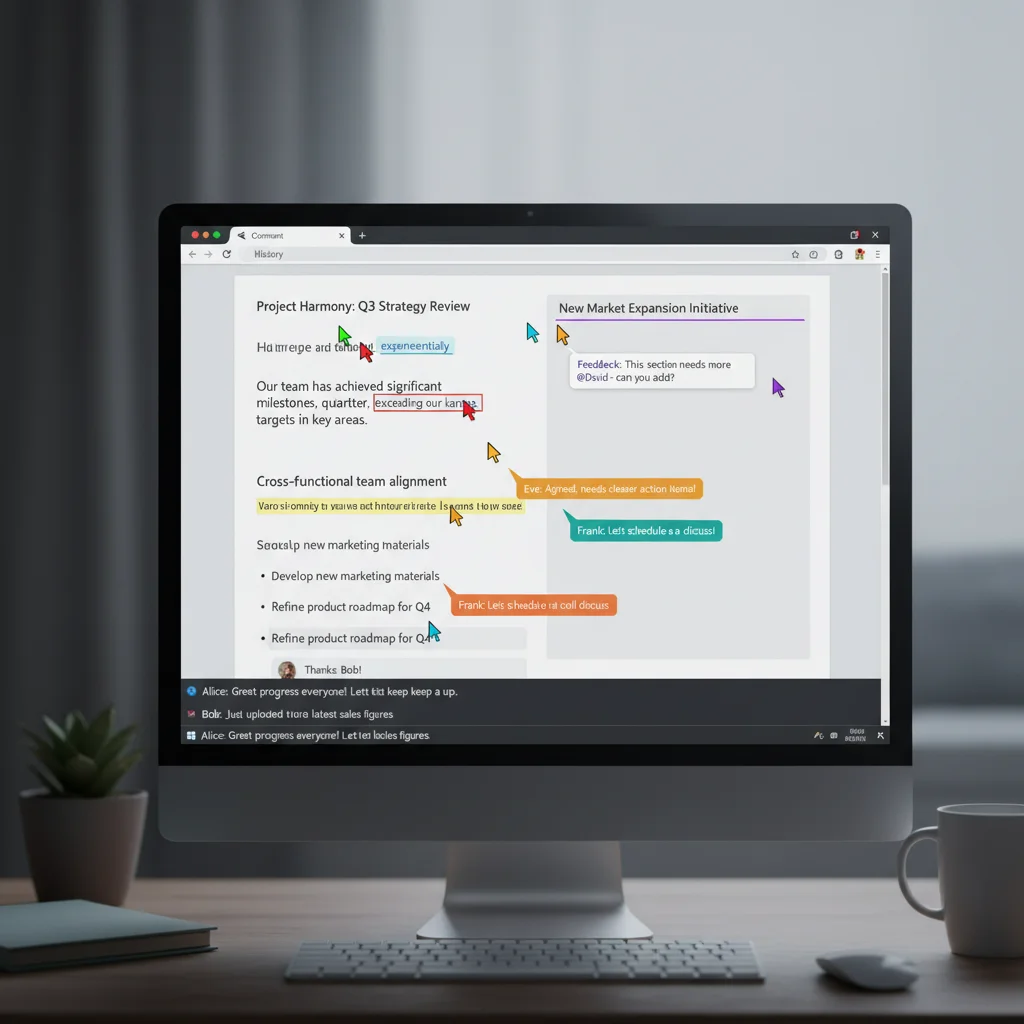
- Dynamic Documents: Embed interactive elements directly into your documents. For example, a people chip links directly to a colleague’s profile, showing their availability and contact info. A file chip displays relevant document details and allows for quick access.
- Enhanced Project Management: Use date chips to assign deadlines, and place chips to link to meeting locations. Project documents become central hubs of information, reducing the need to switch between multiple apps.
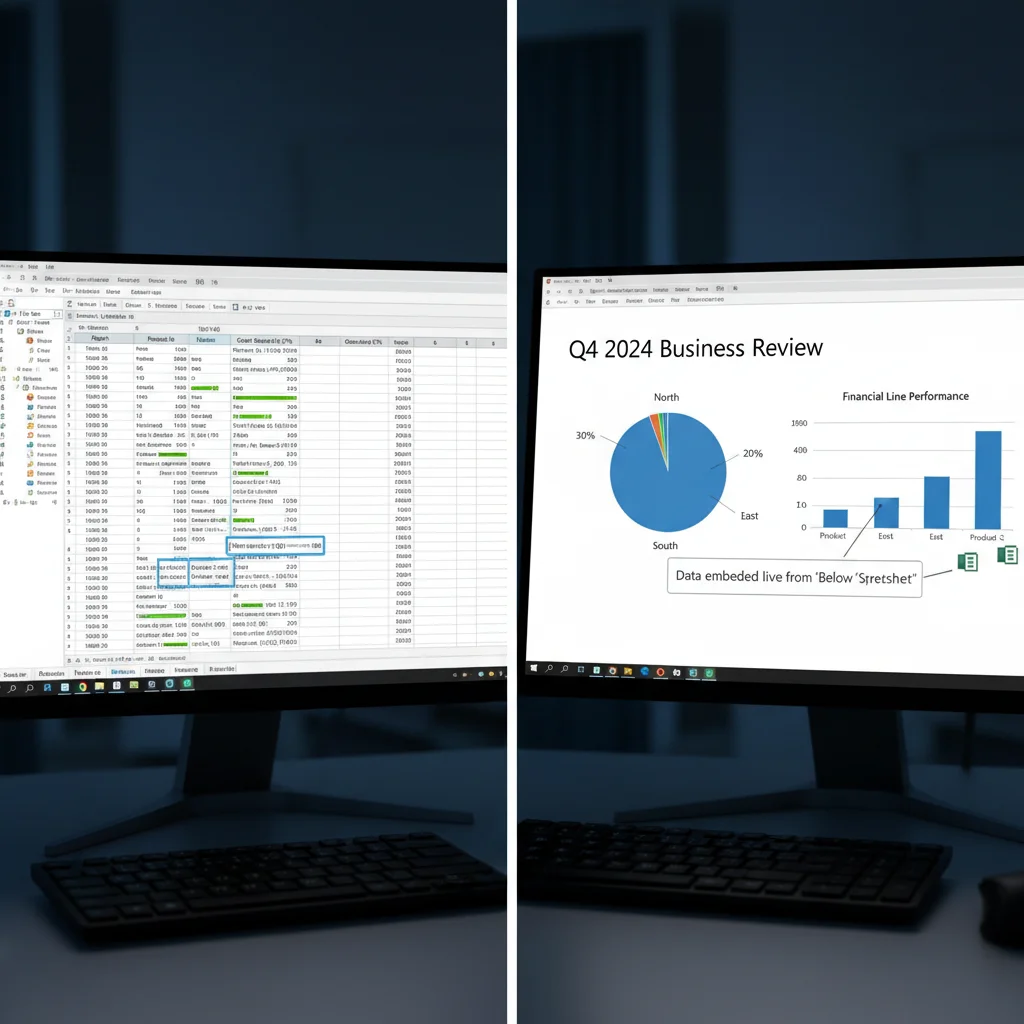
- Seamless Integration: Smart Canvas blurs the lines between Docs, Sheets, Slides, and Meet. You can easily present a Doc directly from a Meet call, or embed a Sheet chart that updates in real-time within a Doc.
- Improved Readability: Pageless format in Google Docs allows documents to expand to the width of your screen, eliminating page breaks and providing a more fluid reading and editing experience, especially for long documents.
How to Get Started
- In Google Docs, Sheets, or Slides, type ‘@’ to bring up the smart chip menu.
- Start typing a person’s name, file name, date, or event to insert the corresponding smart chip.
- Explore built-in templates for meeting notes, project plans, and more, which often leverage smart chips.
- For pageless format in Docs, go to ‘File’ > ‘Page setup’ and select ‘Pageless’.
By leveraging these advanced Productivity Suite Features, your collaborative efforts will become more fluid, intuitive, and efficient, ensuring everyone stays on the same page, literally and figuratively.
3. Microsoft 365’s Version History and Restore: Your Digital Safety Net
We’ve all been there: accidental deletions, unwanted changes, or the need to revert to an older version of a document. While basic undo functions are common, Microsoft 365’s robust Version History and Restore features offer a comprehensive safety net, especially when collaborating. These are crucial Productivity Suite Features for maintaining data integrity and peace of mind.
What is Version History and Restore?
Available across Word, Excel, PowerPoint, and even OneDrive/SharePoint, Version History automatically saves previous versions of your files as you work. This isn’t just a temporary cache; these versions are stored in the cloud, allowing you to browse, compare, and restore any previous iteration of your document, spreadsheet, or presentation.
Why You Should Master It by March 2026
- Undelete and Recover: Accidentally deleted a crucial paragraph? Overwrote a formula? No problem. You can revert to a version before the mistake occurred without losing subsequent work.
- Collaborative Safety: In shared documents, multiple users can make changes. Version History lets you see who made what changes and when, and if necessary, roll back specific edits without affecting others’ contributions.
- Project Milestones: You can label specific versions (e.g., ‘Draft 1 Approved,’ ‘Final Proposal’) to easily track project progress and revert to key milestones if a new direction is needed.
- Auditing and Compliance: For industries requiring strict record-keeping, Version History provides an invaluable audit trail of document evolution.
How to Get Started
- Open your document in Word, Excel, or PowerPoint.
- Click on ‘File’ > ‘Info’.
- Under ‘Version History’, you’ll see a list of saved versions, often with timestamps and author information.
- Click on a version to open it in a separate window. You can then compare it with the current version, save it as a new file, or restore it.
- For files stored in OneDrive or SharePoint, you can also right-click the file in the web browser and select ‘Version history’.
By understanding and utilizing these essential Productivity Suite Features, you can work with greater confidence, knowing that your work is always protected and recoverable, no matter the mishap.
4. Google Apps Script: Automate and Extend Your Workspace
While often perceived as a tool for developers, Google Apps Script is an incredibly powerful, cloud-based JavaScript platform that allows anyone to extend and automate Google Workspace applications. It’s one of the most underutilized Productivity Suite Features, offering immense potential for customization and efficiency gains.
What is Google Apps Script?
Apps Script lets you write simple scripts to automate tasks across Google products like Docs, Sheets, Forms, Calendar, and Gmail. You can create custom functions, build add-ons, or connect Workspace with other services. It runs directly on Google’s servers, meaning you don’t need to install any software.
Why You Should Master It by March 2026
- Automate Repetitive Tasks: Imagine a script that automatically sends email notifications when a new form submission comes in, or one that organizes data in a Google Sheet daily. The possibilities are endless.
- Custom Workflows: Create bespoke solutions tailored to your specific needs. For instance, a script could pull data from a CRM, format it in a Google Sheet, and then generate a personalized Google Doc for each client.
- Enhance Collaboration: Develop custom tools for your team, such as a script that distributes tasks from a master sheet to individual team members’ calendars.
- Integrate Services: Connect Google Workspace with external APIs and services, opening up a world of possibilities for data exchange and automation.
How to Get Started
- Open a Google Sheet, Doc, or Form.
- Go to ‘Extensions’ > ‘Apps Script’. This will open the Script Editor.
- Start with simple examples. Google has extensive documentation and tutorials, including pre-built snippets for common tasks.
- Learn basic JavaScript concepts. Even a rudimentary understanding can unlock significant automation capabilities.
Embracing Google Apps Script means transforming your Google Workspace from a set of applications into a highly customized and automated ecosystem. These Productivity Suite Features are not just for coders; they are for anyone looking to push the boundaries of what their productivity tools can do.
5. Microsoft Editor and Advanced Grammar Checks: Refining Your Communication
Beyond basic spell-check, Microsoft Editor, integrated into Microsoft 365 applications like Word and Outlook, offers sophisticated writing assistance that goes far beyond catching typos. It’s a powerful set of Productivity Suite Features designed to refine your writing, improve clarity, and ensure your message is always professional and impactful.
What is Microsoft Editor?
Microsoft Editor is an AI-powered writing assistant that provides suggestions for grammar, spelling, punctuation, clarity, conciseness, formality, inclusivity, and even vocabulary. It functions across various Microsoft 365 apps and as a browser extension, offering real-time feedback to improve your written communication.
Why You Should Master It by March 2026
- Elevate Your Writing: Editor doesn’t just correct mistakes; it suggests improvements to sentence structure, word choice, and overall readability, helping you sound more professional and articulate.
- Consistency in Communication: Ensure a consistent tone and style across all your documents and emails, which is crucial for brand messaging and professional image.
- Inclusive Language: Editor can highlight potentially insensitive or biased language, helping you write more inclusively and professionally, an increasingly important aspect of modern communication.
- Time-Saving: By catching errors and suggesting improvements as you type, Editor reduces the need for extensive proofreading, allowing you to focus on content creation.
- Learn and Improve: Regular use helps you identify common writing pitfalls and gradually improve your writing skills over time.
How to Get Started
- In Word, go to the ‘Home’ tab and click ‘Editor’.
- A pane will open on the right, listing various suggestions categorized by type (Spelling, Grammar, Clarity, Conciseness, etc.).
- Review the suggestions and accept or ignore them as appropriate.
- For Outlook, Editor suggestions appear as you compose emails.
- Install the Microsoft Editor browser extension for assistance on web pages and other online writing tasks.
By harnessing these advanced Productivity Suite Features, you can transform your writing from merely functional to truly polished and persuasive, making every piece of communication count.
6. Google Workspace’s Shared Drives: Collaborative Storage Reimagined
While Google Drive is a familiar concept for cloud storage, Shared Drives (formerly Team Drives) take collaborative file management to a more robust and organized level. These are crucial Productivity Suite Features for teams that need stable and collective ownership of files and folders.
What are Shared Drives?
Unlike ‘My Drive,’ where files are owned by individual users, files and folders in a Shared Drive are owned by the team or organization. This means that if a team member leaves, their files remain accessible to the team, preventing loss of critical data and ensuring business continuity.
Why You Should Master It by March 2026
- Collective Ownership: All content added to a Shared Drive is collectively owned by the team. This eliminates the risk of losing access to files if an individual contributor leaves the organization.
- Streamlined Permissions: Permissions are managed at the Shared Drive level, making it easier to control who has access to what. You can assign different access levels (viewer, commenter, contributor, content manager, manager) to groups or individuals.
- Organized Team Workspaces: Shared Drives are perfect for project teams, departments, or any group needing a centralized, organized space for shared resources, documents, and ongoing projects.
- Enhanced Security and Compliance: With centralized control and ownership, it’s easier to ensure that sensitive information is stored and accessed appropriately, aiding in compliance efforts.
How to Get Started
- In Google Drive, look for ‘Shared drives’ in the left-hand navigation pane.
- Right-click in the main content area or click ‘+ New’ and select ‘New shared drive’ to create one.
- Add members to your Shared Drive and assign appropriate permission levels.
- Start organizing your team’s files and folders directly within the Shared Drive.
By implementing Shared Drives, your team can achieve a higher level of organization, security, and continuity in their collaborative efforts, making these Productivity Suite Features indispensable for any modern organization.
Looking Ahead to March 2026: The Future of Productivity Mastery
The digital landscape is not static; it’s a dynamic ecosystem where new features and functionalities are continuously introduced. The six Productivity Suite Features discussed above—Excel’s ‘Get & Transform Data’, Google Workspace’s Smart Canvas, Microsoft 365’s Version History, Google Apps Script, Microsoft Editor, and Google Workspace’s Shared Drives—represent just a fraction of the advanced capabilities available within your existing productivity suites. However, mastering these particular features can provide a significant leap in your personal and team efficiency.
By March 2026, the demand for professionals who can not only use but truly optimize these powerful tools will only grow. Organizations are increasingly recognizing that the true value of their software investments lies in the extent to which their employees can leverage advanced functionalities to drive innovation, streamline operations, and enhance strategic decision-making. Those who embrace continuous learning and actively seek to uncover these hidden gems will be the ones leading the charge in productivity.
The Continuous Learning Imperative
Mastering these Productivity Suite Features is not a one-time event but an ongoing commitment. Set aside dedicated time each week or month to explore new updates, watch tutorials, and experiment with features you haven’t used before. Many software providers offer free training resources, webinars, and detailed documentation that can accelerate your learning curve. Engage with online communities, forums, and professional networks to share tips and discover new use cases.
Integrating into Workflow
The key to truly mastering these features is not just understanding them but integrating them seamlessly into your daily workflow. Start small: pick one feature, learn it thoroughly, and apply it to a specific task or project. Once you see the benefits, you’ll be motivated to explore more. Encourage your team members to do the same, fostering a culture of continuous improvement and digital literacy.
Beyond the Features: A Mindset Shift
Ultimately, becoming proficient in these advanced Productivity Suite Features is about more than just technical skill; it’s about adopting a mindset of efficiency, automation, and continuous improvement. It’s about questioning traditional methods and seeking innovative ways to leverage technology to achieve your goals faster and more effectively. By March 2026, let your proficiency in these tools be a testament to your commitment to excellence and your ability to drive significant value in your professional endeavors.
Conclusion
The journey to unlocking your full potential within popular US productivity suites is an exciting one, filled with opportunities to transform your daily work. From automating complex data tasks with Excel’s Power Query to fostering seamless team collaboration with Google Workspace’s Smart Canvas and Shared Drives, and from safeguarding your work with Microsoft 365’s Version History to refining your communication with Microsoft Editor and extending capabilities with Google Apps Script, the tools are at your fingertips.
The deadline of March 2026 isn’t just a date; it’s a call to action. It’s an invitation to proactively invest in your skills, to dig deeper into the software you use every day, and to emerge as a power user who can drive efficiency, innovation, and strategic advantage. By committing to mastering these lesser-known Productivity Suite Features, you are not just learning new software functions; you are investing in your future productivity, your career growth, and your ability to make a significant impact in an increasingly digital world. Start your mastery journey today, and position yourself at the forefront of digital excellence.